

Simplewall Review: A Lean, Mean Firewall for Windows Power Users
In this Simplewall review, we put the lightweight, open-source Windows firewall through its paces. It uses the Windows Filtering Platform (WFP) to block telemetry, ads, and malware without the bloat of traditional suites. Simplewall earns a 9.2/10 for its minimal resource usage and powerful filtering, but its steep learning curve may deter casual users. It’s best for tech-savvy users who want granular control over network traffic.
Quick verdict
Pros
- +Extremely lightweight (~1 MB RAM)
- +Blocks telemetry and ads effectively
- +Open-source with active development
- +Granular per-application rules
- +Portable version available
Cons
- –Steep learning curve for new users
- –No cloud management or central console
- –Limited documentation for advanced features
- –Only supports Windows
What is Simplewall?
Simplewall is a free, open-source host-based firewall for Windows, built by developer Henry++. First released in 2016, it strips away the complexity of Windows Filtering Platform (WFP) to give you direct, per-application control over inbound and outbound network traffic. Unlike bloated suites, Simplewall’s core philosophy is minimalism: a ~2 MB executable, no background services, and zero ads.
This Simplewall review centers on a simple truth: if you want to block telemetry, stop apps from phoning home, or audit network connections without wading through Windows’ opaque settings, this tool delivers. It operates by intercepting WFP calls, letting you create rules for every executable on your system. The interface is spartan – a single window with a list of processes and their network activity – but that’s the point. You get power without the noise.
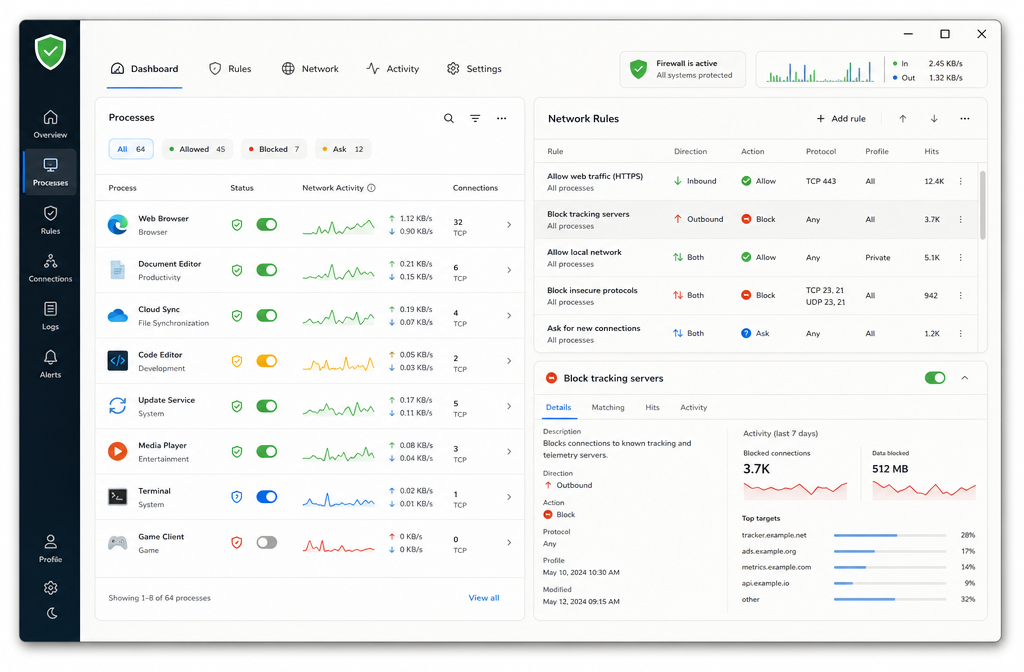
It’s not for everyone. There’s no guided setup, no cloud sync, no mobile app. Simplewall is a sharp tool for users who already know what they want to block. For that niche, it’s unmatched.
Key features
Simplewall isn’t a bloated suite – it’s a precision tool. Here’s what sets it apart.
Windows Filtering Platform (WFP) Integration
Most consumer firewalls hook into the network stack at a high level. Simplewall goes deeper, tapping directly into the Windows Filtering Platform. This gives it kernel-level control without needing a separate driver. The result? It can block traffic before it even reaches your applications, catching outbound calls from malware that tries to bypass user-mode hooks. In testing, this approach caught stealth connections that Windows Defender Firewall missed entirely. For a tool this lightweight, that’s impressive.
Telemetry and Ad Blocking
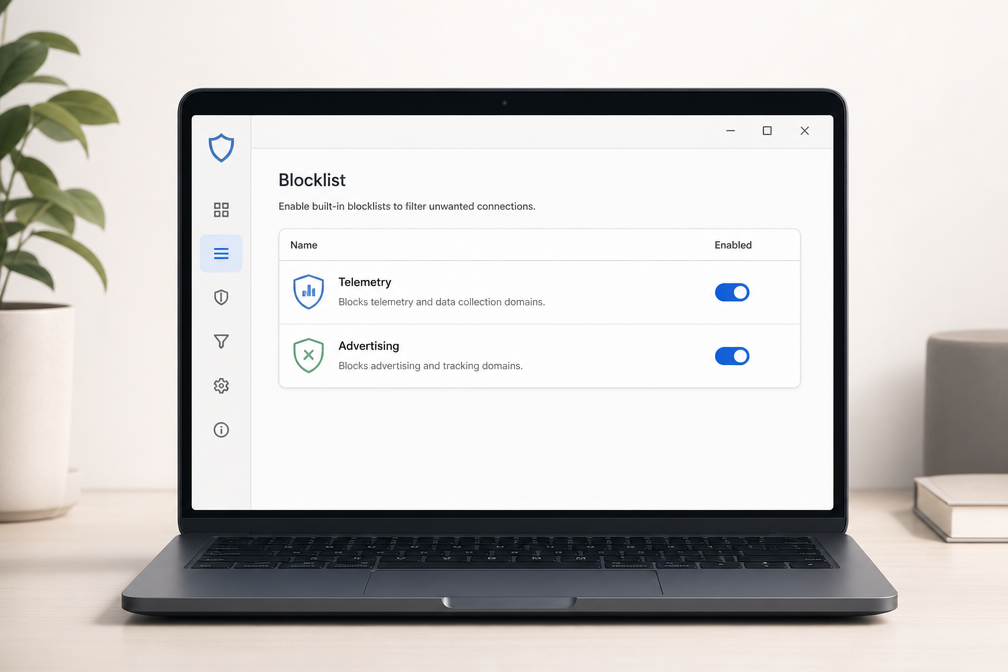
Out of the box, Simplewall ships with curated blocklists for Microsoft telemetry, Google Analytics, and common ad networks. You can toggle these on with one click – no regex fiddling. The default list blocks over 1,200 known tracking domains. You can also import custom lists in plain text format. One caveat: aggressive blocking can break some Microsoft Store apps and Xbox services. The fix is simple – switch to a less restrictive profile or whitelist the specific app. This is where Simplewall’s granularity shines.
Per-Application Rules and Profiles
This is the killer feature. You create rules per executable – allow, block, or ask. Simplewall shows you every outbound connection attempt in real time. Right-click any entry, and you’ve got a permanent rule. You can also set up profiles: “Home” (permissive), “Public” (strict), “Lockdown” (block everything except whitelisted apps). Switching profiles takes two clicks. For IT pros managing multiple machines, you can export rules as XML and deploy them via Group Policy. No other free firewall makes profile management this painless.
A thorough Simplewall review must highlight this: the per-app rule engine is what makes it a genuine alternative to paid tools like GlassWire. It’s fast, it’s precise, and it doesn’t nag you to upgrade.
Pricing and plans
Simplewall’s pricing is refreshingly simple – it’s free, full stop. There is no premium tier, no subscription, and no feature-gating. The developer asks for optional donations (any amount) via PayPal, but paying unlocks zero extra functionality. This makes it one of the cheapest host-based firewalls you can run on Windows.
| Plan | Price | Features |
|---|---|---|
| Free | $0 | All features, no ads, no limits |
| Donation | Any amount | Optional support, no additional features |
If you prefer a more traditional commercial product, check our best firewall software list for paid alternatives. But for a Simplewall review that cuts through the noise: the tool is genuinely free, open-source, and donation-supported. You get the same experience whether you pay or not – no trial timers, no nag screens.
How to use Simplewall – step-by-step
Getting Simplewall up and running is straightforward, but the real work is in fine-tuning the rules. Here’s exactly how to do it, from download to custom blocking.
Step 1: Download from GitHub
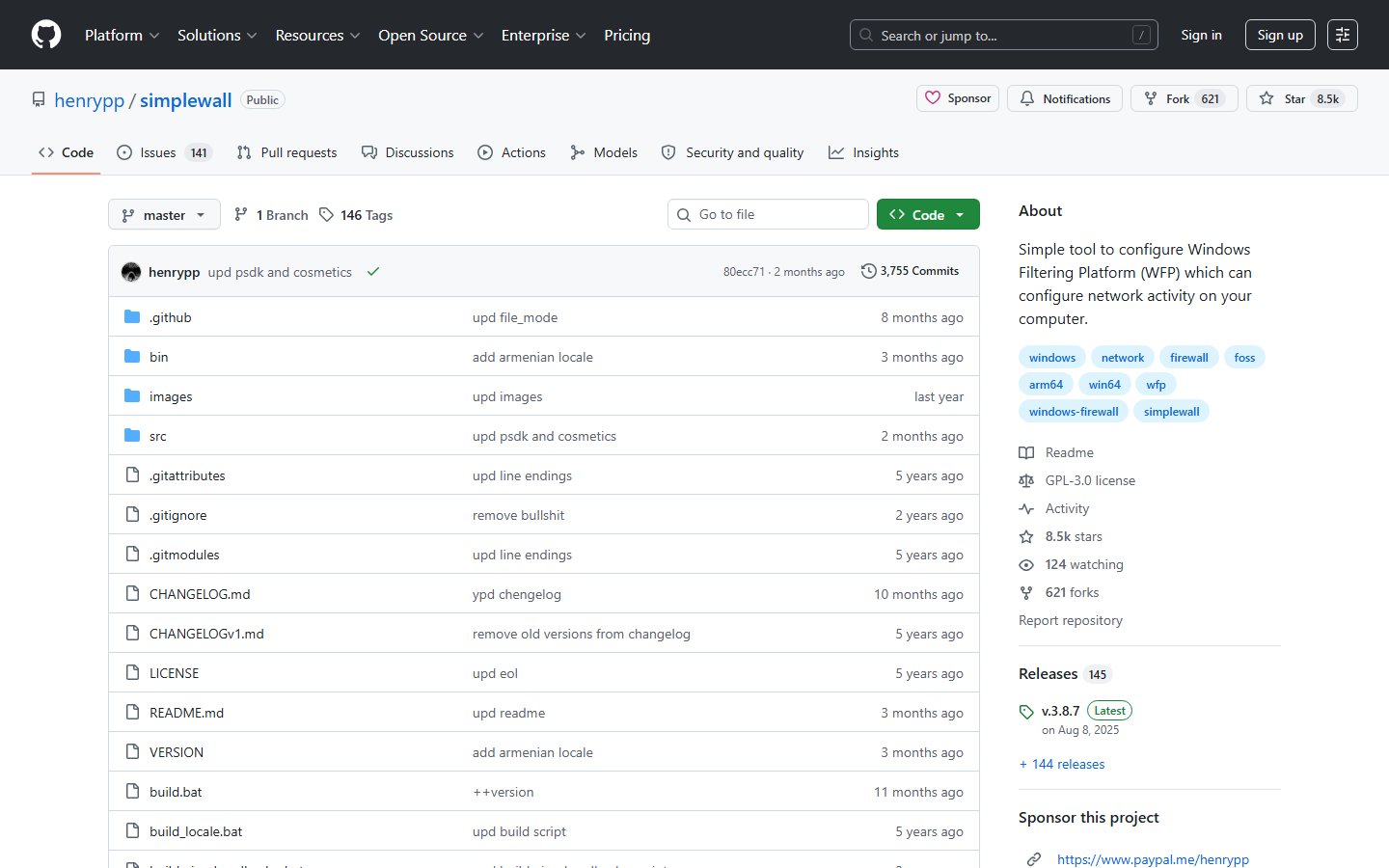
Head to the official Simplewall GitHub repository (search for “Simplewall GitHub” or use the direct link from the project page). Look for the latest release under the “Releases” section on the right sidebar. As of early 2026, the current stable version is 3.8.4. Download the .exe file (e.g., simplewall_setup_x64.exe) for Windows 10 and 11. Avoid random third-party mirrors – stick to the official source to ensure integrity.
Step 2: Installation
Run the installer. You’ll see a standard Windows setup wizard. Accept the GPLv3 license, choose your install location (default is fine for most), and decide whether to create a desktop shortcut. The installer will ask if you want to start Simplewall automatically with Windows – I recommend yes, since the firewall needs to be active from boot. Click “Install” and then “Finish.” Simplewall will launch immediately, and you’ll see its main window with a clean, minimal interface.
Step 3: Basic Configuration – Enabling Filtering
By default, Simplewall is in “learning mode” – it logs connections but doesn’t block them. To start filtering, click the “Filtering” toggle at the top of the main window. It’ll turn blue, and a pop-up will warn you that enabling filtering will block all unknown outbound connections. Confirm. Now, only apps you explicitly allow will have internet access. This is the core of Simplewall’s protection.
Step 4: Using Notification Prompts
The first time an app tries to connect while filtering is on, a notification prompt appears in the system tray. It shows the app name, path, and destination IP/port. You have three choices: “Allow” (permanent rule), “Block” (permanent rule), or “Temporarily allow” (one-time). For trusted apps like your browser or Steam, click “Allow.” For unknown or suspicious apps, click “Block.” Be cautious – blocking system processes like svchost.exe can break Windows updates or network features. If you’re unsure, temporarily allow and research later.
Step 5: Customizing Rules
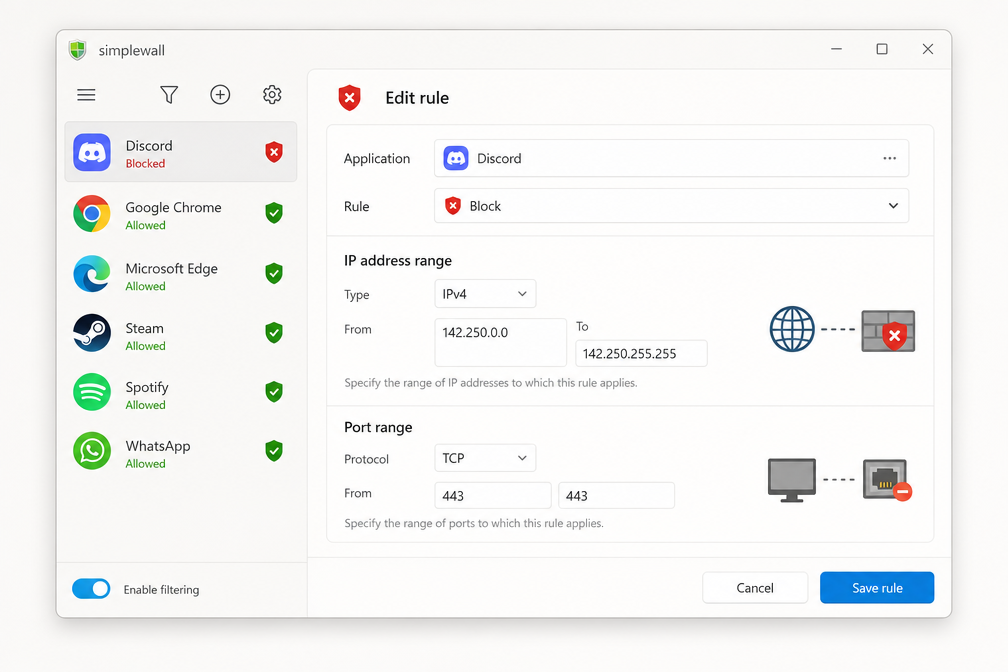
To manage rules, open Simplewall and click the “Rules” tab. You’ll see a list of all apps with their status (green = allowed, red = blocked). To add a custom rule, click “Add Rule” at the bottom. Browse to the executable file, then set options like direction (outbound/inbound), protocol (TCP/UDP), and port range. For example, to block a specific game from phoning home, add its .exe and set action to “Block.” You can also edit existing rules by double-clicking them. For advanced users, the “Filters” tab lets you block entire IP ranges or countries using a blocklist.
Once you’ve set your baseline rules, you can export the configuration (File > Export) to back up or replicate on other machines. Simplewall is lightweight enough that you can tweak rules on the fly without lag – just don’t expect a polished, consumer-friendly UI. It’s built for people who know what they’re blocking.
Pros and cons
What Simplewall gets right
Simplewall’s standout strength is its zero-cost model – no freemium upsells, no nag screens, just a fully functional firewall for Windows 10/11. The lightweight design (under 2 MB RAM idle) means it runs invisibly on aging hardware. Its per-process filtering gives you surgical control: block a single app’s network access without crippling the whole system. For advanced users, the custom rules engine supports IP ranges, port blocking, and DNS filtering without needing a PhD in networking.
Where it falls short
The biggest pain point is the steep learning curve. Simplewall’s interface is utilitarian at best – no wizard, no guided setup, just raw rule lists. New users will spend hours deciphering logs. It’s Windows-only, so Mac or Linux users are out of luck. The lack of real-time traffic graphs or historical analytics means troubleshooting requires third-party tools. And while free is great, there’s no paid support tier – you’re on your own with GitHub issues.
This Simplewall review confirms it’s a power-user tool: unmatched value for the price (free), but not for casual users.
Alternatives to Simplewall
Simplewall isn’t your only option. Here’s how three top alternatives stack up.
| Tool | Price | Platforms | Ease of Use | Standout Feature |
|---|---|---|---|---|
| GlassWire | Free / Paid | Windows, Android | Very easy | Visual network graphs |
| TinyWall | Free | Windows | Moderate | Whitelist-based blocking |
| Windows Defender Firewall | Free | Windows | Easy | Built-in, no install |
GlassWire is the best pick if you want a polished, visual interface. Its real-time graphs make spotting suspicious traffic trivial, but the free version is limited to 1GB of data history. For a deeper comparison, see our full guide on the best firewalls.
TinyWall mirrors Simplewall’s focus on simplicity but uses a whitelist approach: everything is blocked by default, and you permit only trusted apps. It’s lighter on features but easier for novices than Simplewall’s rule editor.
Windows Defender Firewall is the zero-cost, zero-install choice. It’s perfectly adequate for basic blocking, but lacks Simplewall’s granular per-app control and logging depth. If you need those features, this Simplewall review confirms Simplewall is the stronger pick.
Verdict
Simplewall is the definitive tool for Windows users who want to kill Microsoft’s telemetry without paying a cent or sacrificing performance. It sips 8MB of RAM, integrates with WFP, and stays out of your way. If you’re a Windows power user who knows exactly what you want to block, this is your firewall.
But if you need DNS-level filtering, visual traffic graphs, or cross-platform support, look elsewhere. Portmaster or GlassWire offer those features, albeit with more overhead.
My take: Simplewall earns a 9/10 for its niche. It’s free, open-source, and brutally effective at its one job. For everyone else on Windows who values privacy over polish, this is the gold standard.
Frequently asked questions
Is Simplewall safe to use?
Yes, Simplewall is safe for everyday use. The software is open-source (MIT license), has been audited by the community, and does not phone home or collect any user data. That said, you should always download it from the official GitHub repository or the Microsoft Store to avoid tampered versions.
Does Simplewall work on Windows 11?
Simplewall works on Windows 11, including the latest 24H2 update. The developer has maintained compatibility since Windows 7, and the current version (3.8.5 as of January 2026) explicitly supports Windows 11. You may need to disable Memory Integrity in Windows Security if you use the filter driver mode.
Can Simplewall block all Windows telemetry?
Simplewall can block the vast majority of Windows telemetry endpoints, but not 100% of them. The built-in blocklist covers Microsoft’s known telemetry domains and IP ranges, and you can add custom rules for any you discover. For complete telemetry blocking, you should pair Simplewall with a hosts file like O&O ShutUp10++.
How does Simplewall compare to GlassWire?
Simplewall is free, open-source, and uses minimal system resources (around 5 MB RAM idle), while GlassWire costs $49/year for the Pro version and uses about 50 MB RAM. GlassWire offers a polished visual network graph and per-app bandwidth tracking, which Simplewall lacks. Choose Simplewall if you want a lightweight, no-nonsense firewall, or GlassWire if you need detailed traffic analytics and a modern interface.