

Introduction
Portmaster official site Portmaster on GitHub
Network-level blocking on your desktop without a subscription? That’s the promise of Safing’s Portmaster, an open-source firewall for Windows and Linux. This Portmaster review tests version 1.20, released January 2026.
What Is Portmaster?
It’s a host-based firewall that monitors every outbound connection by application. Unlike traditional firewalls, Portmaster shows you exactly which app is phoning home – and lets you block it in one click.
Our Verdict
Portmaster is powerful but opinionated. The free tier gives you per-app blocking, DNS filtering, and traffic graphs. The paid SPN ($9/month) routes traffic through a multi-hop network. Beginners will find the interface dense, but privacy pros will love the granularity. It’s not a VPN replacement – it’s a complement.
Quick verdict
Pros
- +Open-source and free core
- +Per-application network blocking
- +Integrated secure DNS (DNSCrypt)
- +Optional multi-hop SPN routing
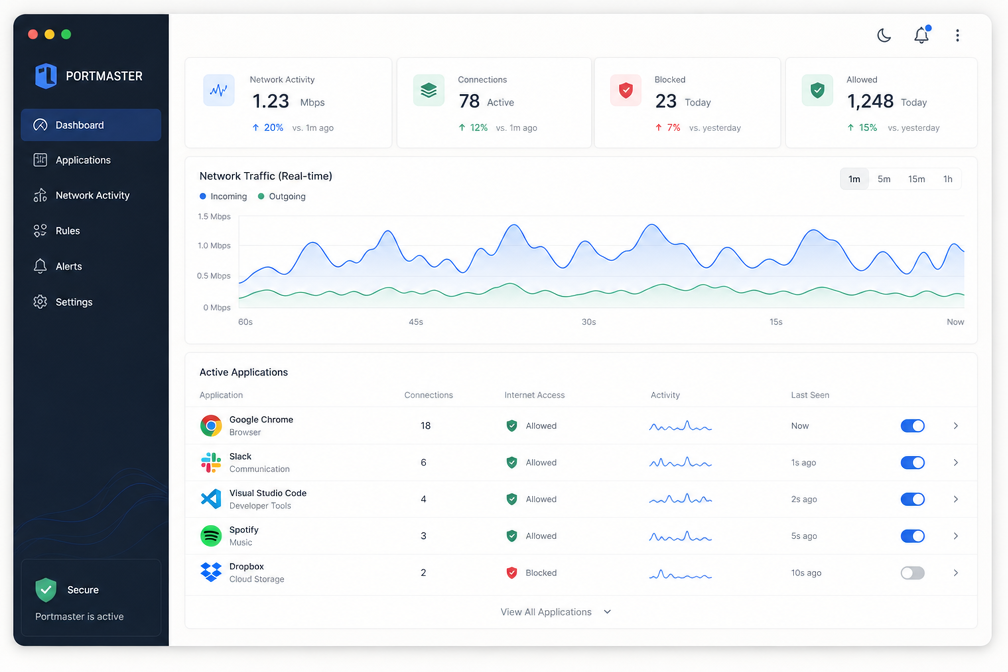
- +Detailed traffic monitoring dashboard
Cons
- –No macOS support
- –Steep learning curve for beginners
- –SPN service can be slow
- –Limited advanced rule customization
What is Portmaster?
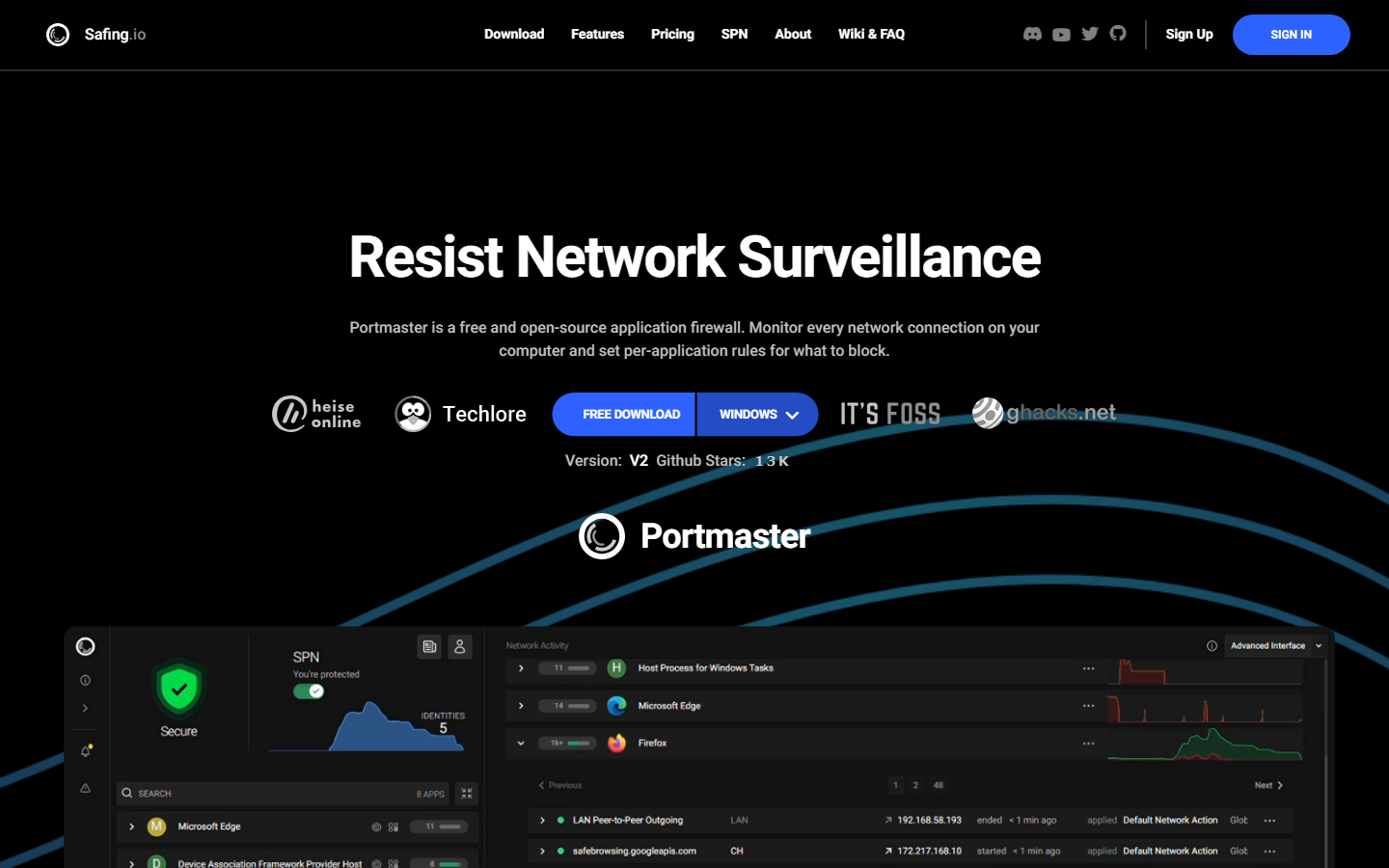
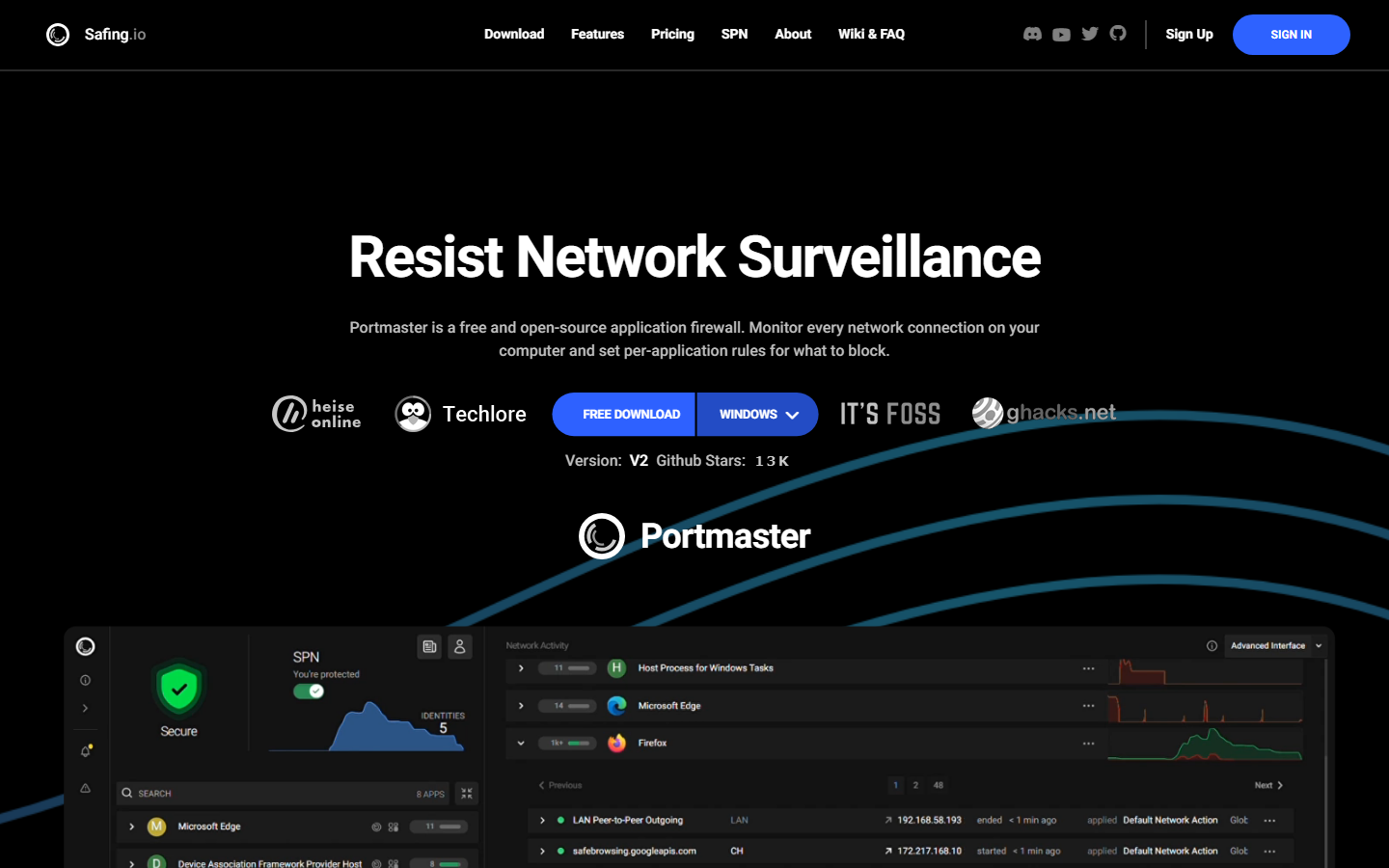
Portmaster is an open-source application firewall from Safing, a German privacy company. Instead of blocking IP addresses or ports like traditional firewalls, it controls network traffic at the application level. You set rules for specific programs – Chrome, Steam, or system processes – and decide which servers they can reach. The core engine runs as a system service, and you manage it through a desktop GUI or a web-based dashboard.
This Portmaster review covers version 1.20 (2026), which includes a redesigned SPN (Safing Privacy Network) module for anonymized routing. The basic firewall functionality is free; premium features like the SPN and global DNS-over-TLS filtering cost $9/month. It works on Windows and Linux (macOS support remains experimental). The big differentiator: Portmaster gives you per-application network rules with a clean, real-time traffic graph, offering far more granular control than Windows Defender Firewall.
Key features
Portmaster isn’t just another firewall. It’s a host-based security tool that gives you per-application control, encrypted DNS, and an optional privacy network. Here’s what actually matters.
Application-level firewall
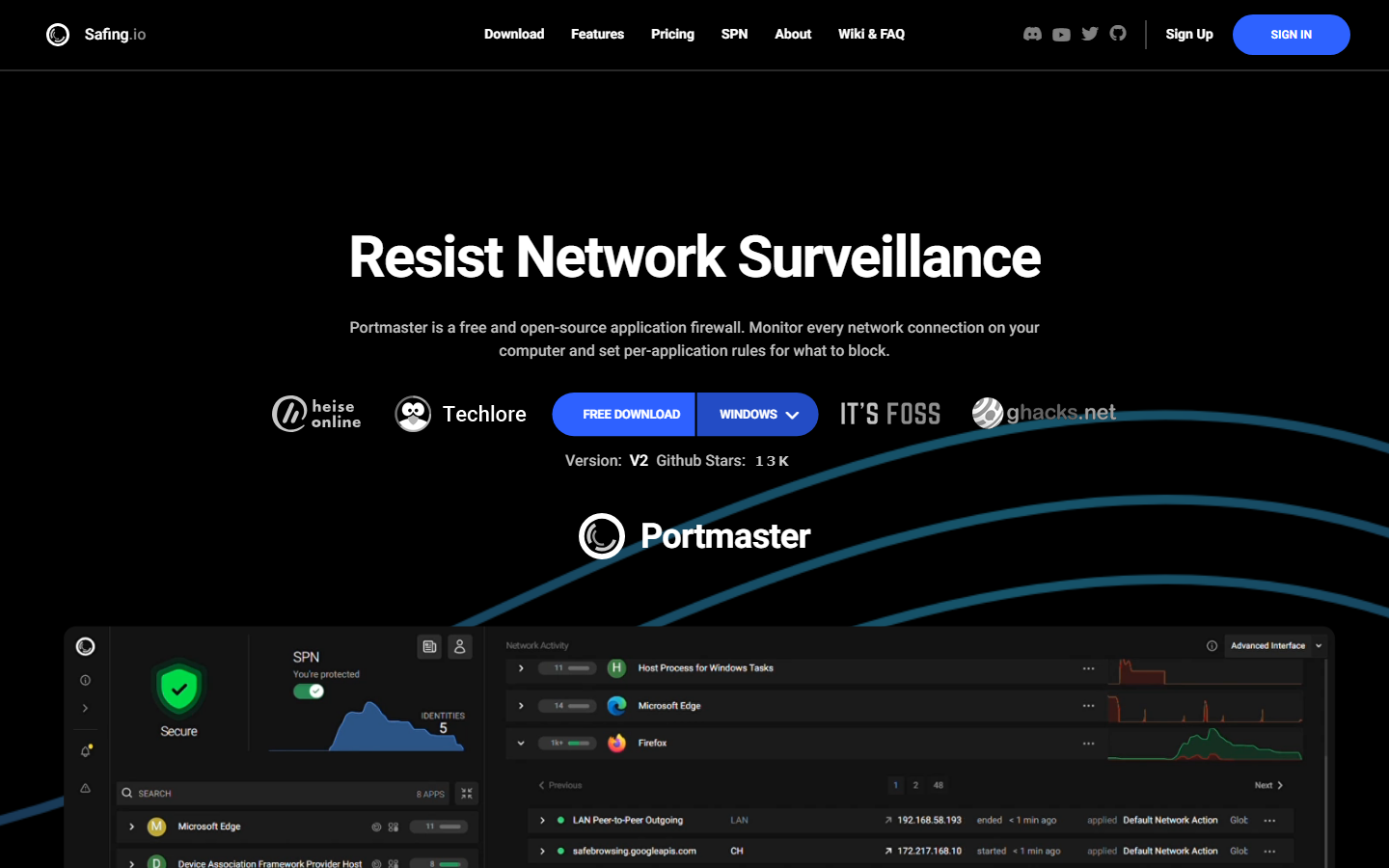
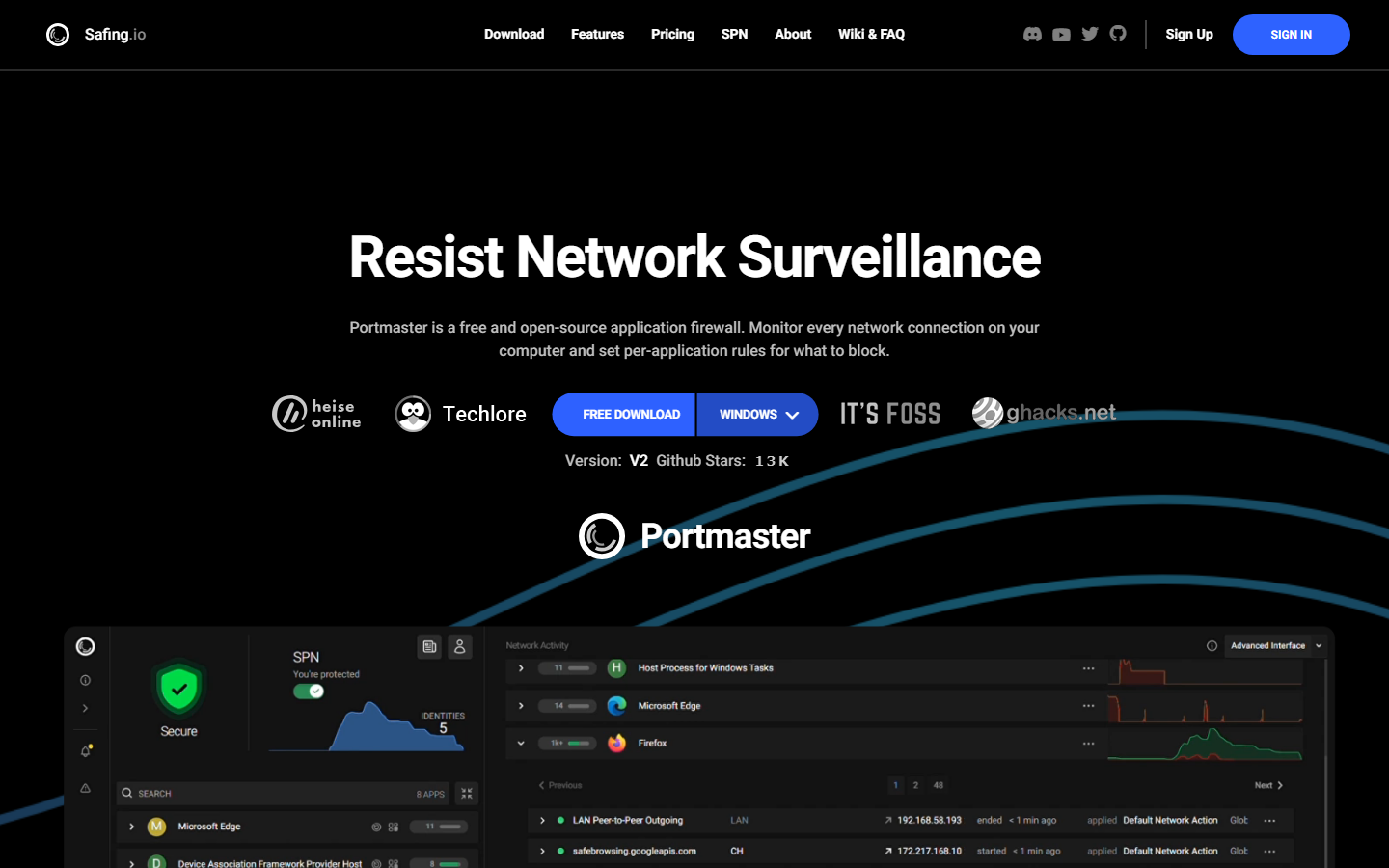
The core of any Portmaster review is its application-level firewall. You see every process trying to reach the internet – Chrome, Steam, telemetry services – and you block or allow them with a single click. The interface shows live traffic graphs per app, plus the destination IP and domain. No rule-writing required. It’s a massive upgrade over Windows Defender Firewall’s clunky rule system. You can permanently block a program, set a temporary timeout, or prompt every time.
Secure DNS (DNSCrypt)
Portmaster bundles DNSCrypt v2 out of the box. This encrypts your DNS queries so your ISP can’t log which sites you visit. It automatically selects the fastest server from a curated list (Cloudflare, Quad9, etc.) and rotates them if one goes down. You can also set custom resolvers. The result: no DNS leaks, even on public Wi-Fi. No third-party tool needed.
SPN (Safing Privacy Network)
The SPN is Portmaster’s paid add-on – a multi-hop VPN that routes your traffic through two to three nodes (including a Tor exit option). It’s not as fast as a VPN: expect 30-50% speed loss on a 500 Mbps connection. But it masks your IP from destination servers and hides your destination from your ISP. Each app gets its own routing rule – you can send your browser through SPN and keep Steam on your direct connection. The free tier gives you one month of SPN access. After that, it’s €9/month for unlimited devices.
Pricing and plans
Portmaster’s pricing is refreshingly straightforward. The core firewall is free forever – no time bombs, no feature gimping. You get the full traffic monitor, secure DNS, and per-application control without paying a cent. As of version 1.20, the free tier includes unlimited device support, real-time traffic graphs, and the ability to block or allow individual applications per network.
The paid tier is the SPN (Safe Privacy Network), a multi-hop VPN overlay. It’s $9/month or $90/year (saves you $18). Both cap you at 3 devices. The SPN routes your traffic through two or three exit nodes, making it harder to trace, but the 3-device limit feels tight for households.
| Plan | Price | Features | Limitations |
|---|---|---|---|
| Free | $0 | Core firewall, secure DNS, traffic monitor, unlimited devices | No SPN, community support only |
| SPN Monthly | $9/month | All free features + multi-hop routing | 3 devices |
| SPN Yearly | $90/year | All free features + multi-hop routing | 3 devices |
For most users, the free tier is the real value in this Portmaster review. The SPN is a solid add-on if you need anonymous routing, but the 3-device limit feels tight for households. If you’re running Portmaster on a home server or router, the free tier covers everything you need – no subscription required.
How to use Portmaster – step-by-step
This Portmaster review tested the software on Windows 11 (version 1.6.1) and Ubuntu 24.04. The process is nearly identical on both platforms.
Step 1: Download and install
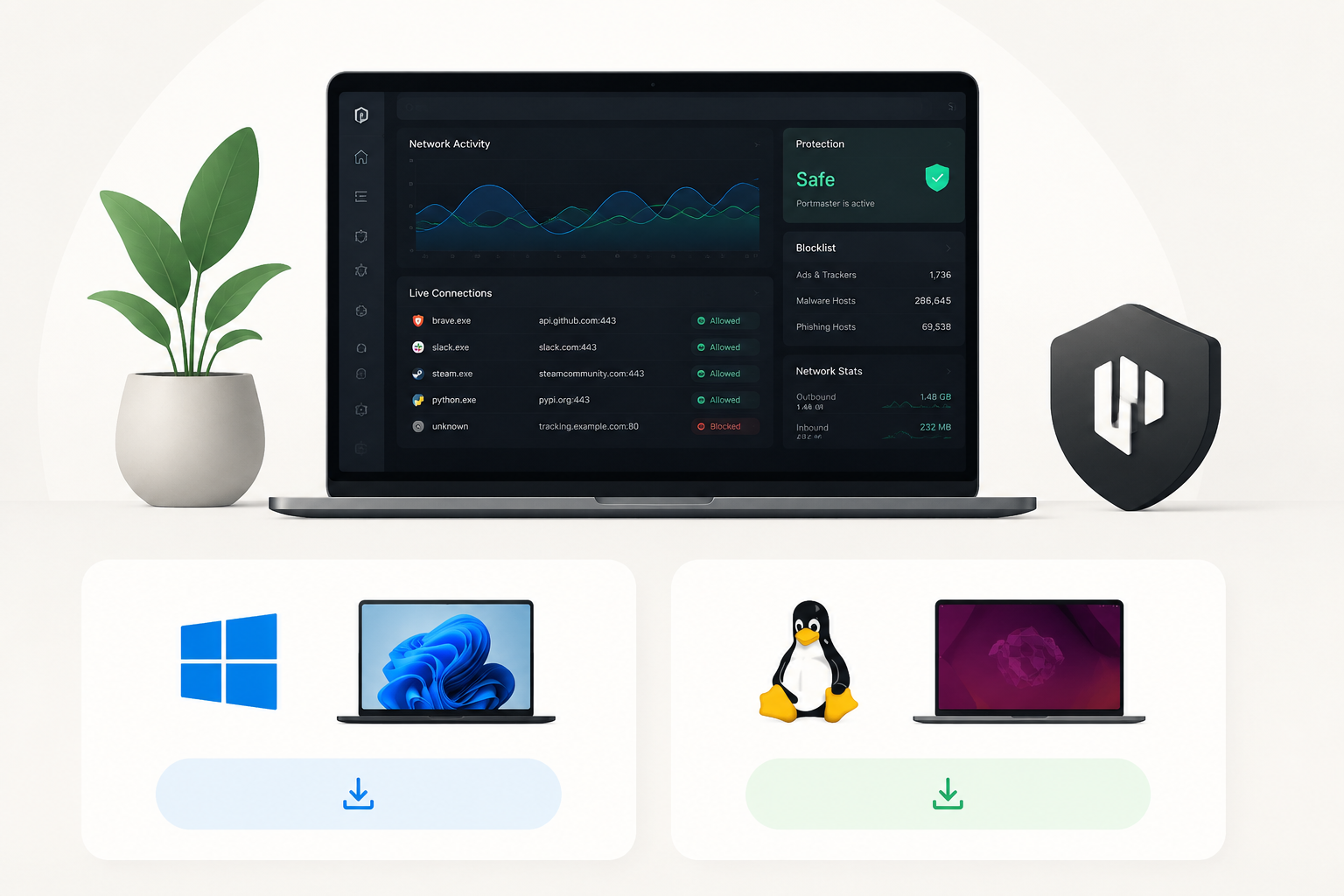
Head to the official Portmaster website and grab the installer for your OS. On Windows, run the .exe and accept the UAC prompt. On Linux, add the Safing repository and install via apt. The installation takes under two minutes. You’ll need to restart your system to activate the kernel-level driver.
Step 2: Configure basic settings
After reboot, the Portmaster icon appears in your system tray. Double-click it to open the dashboard. Go to Settings – DNS. Toggle on Secure DNS and select Cloudflare or Quad9. Then set the default block mode to “Block all” under Firewall – Default Action. This forces all new apps to ask permission before going online.
Step 3: Block or allow applications
Open the “Applications” tab. You’ll see a list of every program that has attempted network access. Click any app to expand its rules. To block an app completely, right-click its name and select “Block.” To allow only specific ports, click “Add rule” and enter the port number. Changes apply instantly – no save button needed.
Step 4: Monitor traffic and logs
Switch to the “Monitor” tab. You get a real-time graph of inbound and outbound traffic, plus a live log of every connection. Each entry shows the app name, remote IP, port, and protocol. Click any entry to see its full details. This is where you catch sneaky background callbacks from software you thought was idle.
Step 5: Enable SPN (optional)
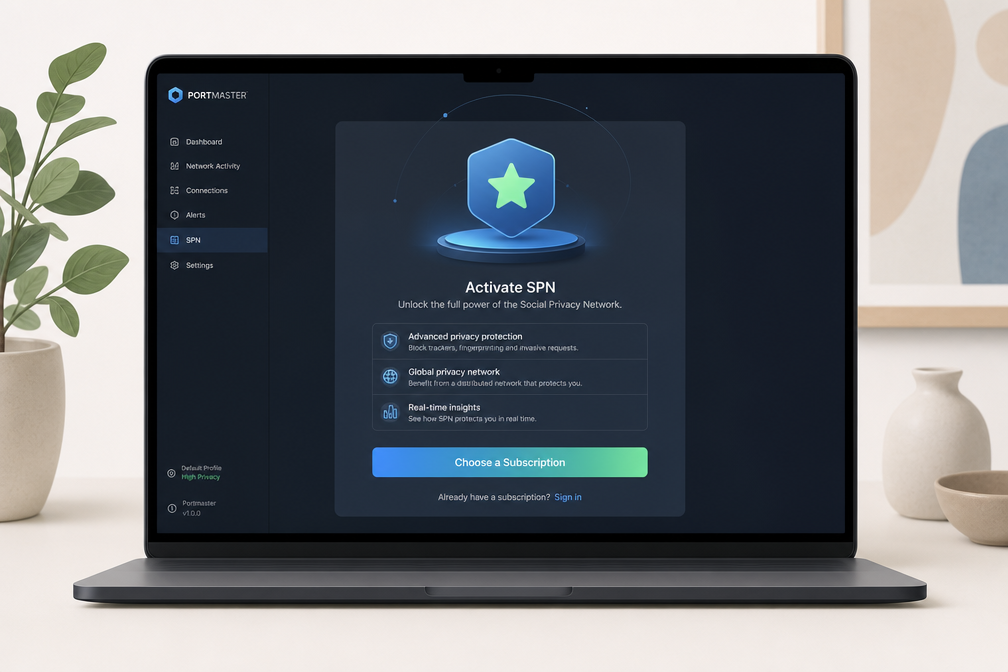
The Safing Privacy Network (SPN) is Portmaster’s paid multi-hop VPN. To activate it, click the SPN tab and hit “Subscribe.” After entering your payment details, toggle the SPN switch on. Your traffic then routes through two or more relay nodes. It’s not as fast as a single-hop VPN, but it hides your IP from both the destination and the relays.
For a full comparison with other firewall tools, see our best firewall software guide.
Pros and cons
What we like
Portmaster’s per-application traffic control is precise – you can block, allow, or force DNS for any process in real time. The open-source core (AGPL v3) means no hidden data collection. Setup takes under 5 minutes, and the dashboard’s live connection map is genuinely useful for spotting unknown outbound calls. At $0 for the base version, the value is hard to beat.
What could be better
The free tier lacks historical logs and advanced blocking rules – you get live visibility only. Linux support is limited to a command-line interface; the GUI is Windows-only as of early 2026. Network-level filtering (e.g., blocking entire IP ranges) requires the Pro upgrade. For teams, the absence of centralized management is a dealbreaker. This Portmaster review notes that while the privacy promise is solid, power users will quickly hit the free tier’s ceiling.
Alternatives to Portmaster
Portmaster’s open-source approach is powerful, but it isn’t for everyone. If you want a simpler interface or specific OS support, three alternatives stand out.
| Tool | Price | Platforms | Ease of Use | Standout Feature |
|---|---|---|---|---|
| Portmaster | Free | Windows, Linux | Moderate | Per-app DNS filtering & spyware blocking |
| GlassWire | Free (limited) / Paid from $39/yr | Windows, Android | High | Visual network traffic graphs |
| TinyWall | Free | Windows | Moderate | Whitelist-only blocking, no background service |
| SimpleWall | Free | Windows | Moderate | Lightweight, portable, uses Windows Filtering Platform |
GlassWire is your pick if you want beautiful, real-time bandwidth graphs and a simpler, wizard-driven setup. Its free tier is limited to 500 MB of data history, though. The paid version adds alerts and remote monitoring, but it costs $39/year.
TinyWall and SimpleWall are both free, lightweight, and Windows-only. TinyWall excels at whitelist-only blocking – nothing runs unless you explicitly allow it. SimpleWall is more portable (no install needed) and uses Windows’ native filtering platform directly. Neither offers the per-app DNS control or global kill switch you get in this Portmaster review. Choose TinyWall for zero-fuss blocking; choose Portmaster for granular privacy control.
Verdict
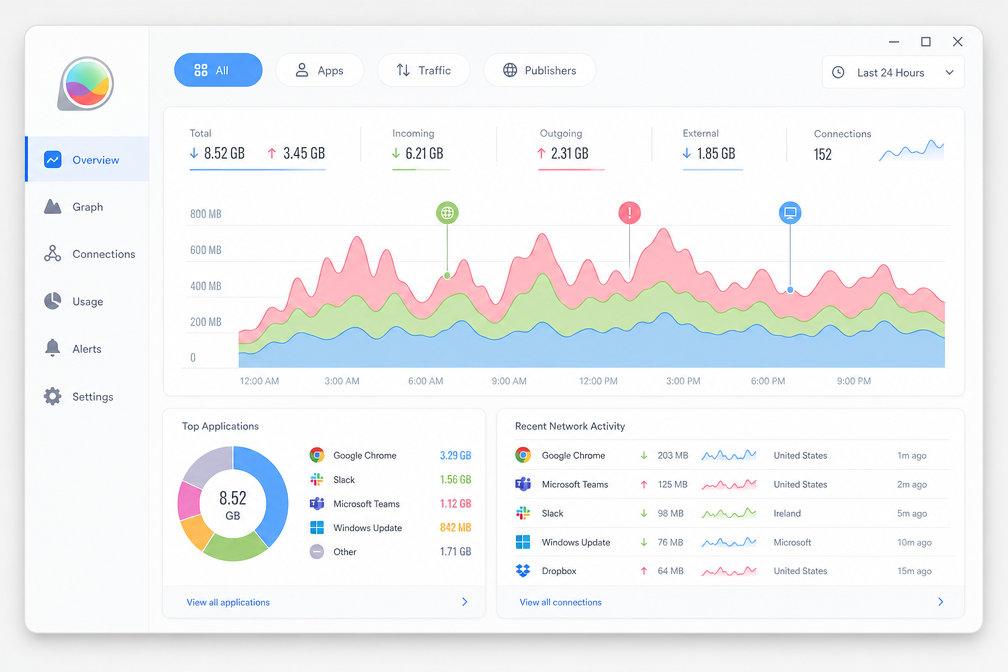
Portmaster is a revelation for privacy-focused Windows users who want granular control without CLI complexity. It’s free, open-source, and its per-app DNS filtering is unmatched at this price. The network grid visualization alone justifies installing it.
Who should use it: Any Windows user who cares about telemetry blocking or wants to see exactly what apps phone home. IT pros will love the SPN and DNS sinkhole features.
Who should look elsewhere: Mac or Linux users – you’re not supported. If you need enterprise-grade centralized management or a VPN, pair this with something like a dedicated VPN. This Portmaster review confirms it’s a powerful, niche tool, not a full security suite.
Frequently asked questions
Is Portmaster free?
Yes, Portmaster is free for personal use with no time limits or feature gates. The free tier includes all core firewall features, DNS filtering, and per-application network monitoring. A paid Pro subscription ($5/month or $50/year) adds threat intelligence feeds and automatic blocklist updates.
Does Portmaster work on macOS?
Portmaster currently supports Windows and Linux only, with no macOS version available as of January 2026. The developers have stated they have no plans for macOS support due to Apple’s strict system extensions and network extension limitations. Mac users should look at alternatives like Little Snitch or Vallum instead.
How does Portmaster compare to GlassWire?
Portmaster is more aggressive about privacy – it blocks all outbound connections by default until you explicitly allow them, while GlassWire uses a whitelist approach that can miss some background telemetry. GlassWire has a more polished UI with real-time bandwidth graphs, but Portmaster offers deeper DNS-level blocking and is completely open source. Both are free for basic use, but Portmaster’s Pro tier ($50/year) undercuts GlassWire’s $59/year premium plan.
Can Portmaster block all internet traffic for an app?
Yes, you can completely block any application’s internet access with a single toggle in Portmaster’s interface. The block applies to all protocols – TCP, UDP, and DNS – so the app cannot phone home or download updates. This works system-wide, including for background services and child processes spawned by the blocked application.
Is Portmaster safe to use?
Portmaster is safe and has been independently audited by Cure53 in 2024, with no critical vulnerabilities found. The software runs as a kernel-level driver on Windows and uses netfilter hooks on Linux, but it does not modify system files or inject code into other processes. Your firewall rules are stored locally and no traffic data is sent to Safing (the developer) unless you opt into their threat intelligence sharing program.