

Introduction
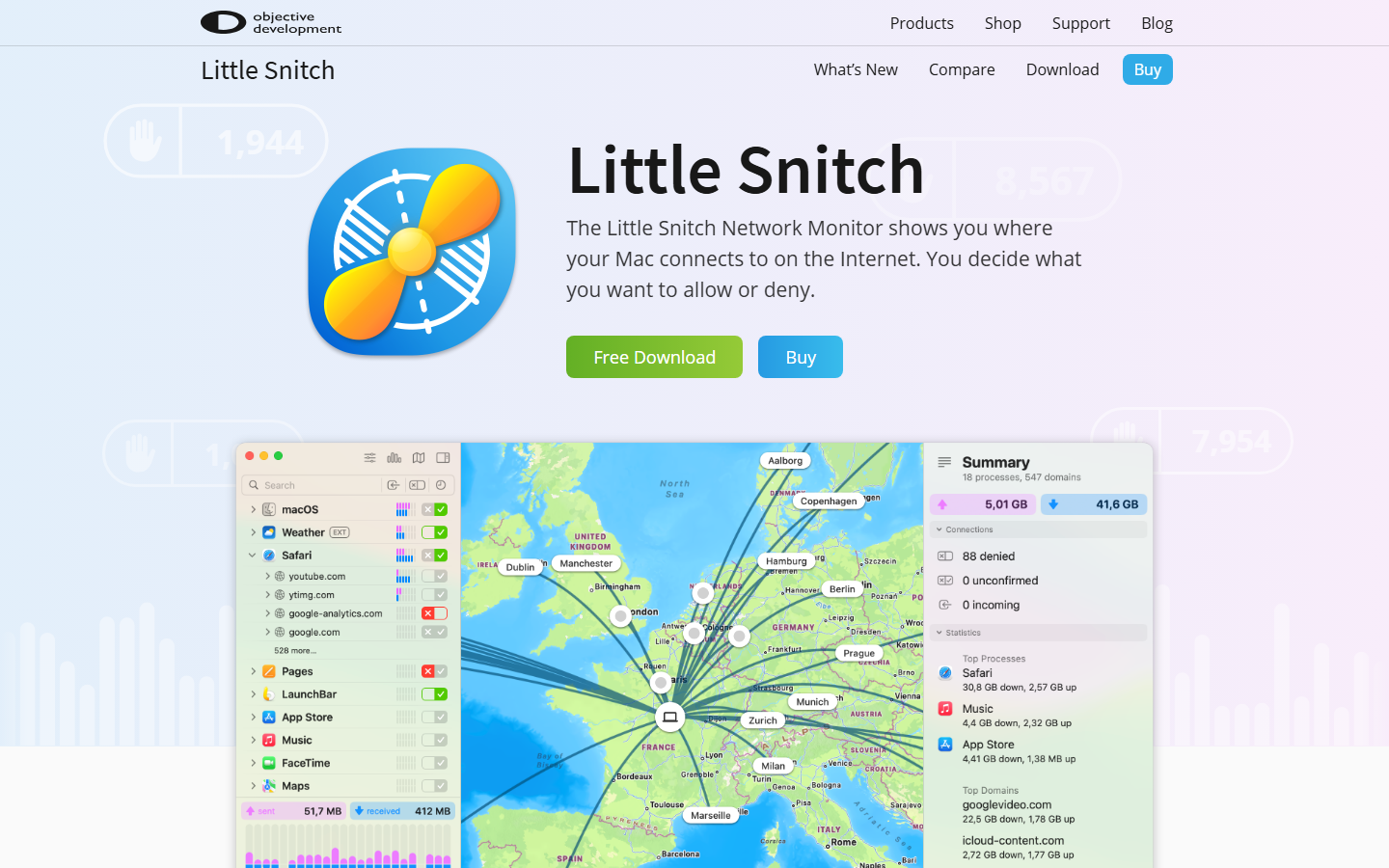
In this Little Snitch 6 review, we put the latest version of Objective Development’s iconic macOS firewall through its paces. Version 6 introduces a redesigned interface, improved network monitoring, and updated rules for modern apps. It remains the gold standard for outbound firewall control on Mac – but that premium price and macOS-only limitation means it’s not for everyone.
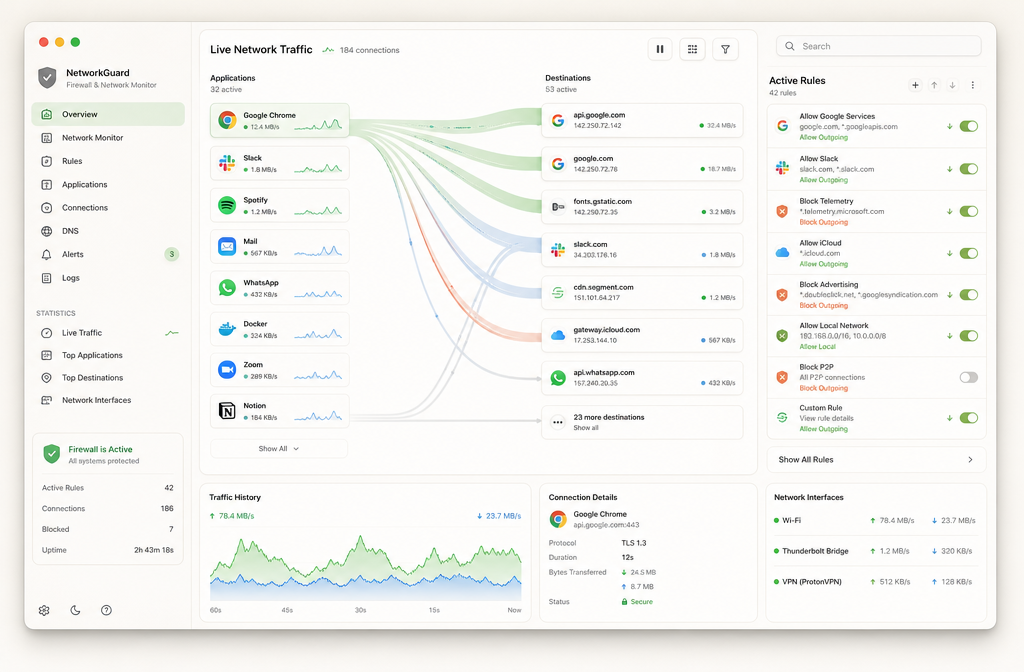
If you’re a privacy-conscious Mac user who wants granular control over every outbound connection, Little Snitch delivers. For Windows users or those on a tight budget, check our firewall alternatives guide.
Quick verdict
Pros
- +Granular per-app firewall rules
- +Encrypted DNS support (DoH/DoT)
- +Silent Mode for minimal interruptions
- +Excellent documentation and support
Cons
- –macOS only, no mobile version
- –Steep learning curve for beginners
- –No built-in VPN or ad blocking
- –Price higher than some alternatives
What is Little Snitch 6?
Little Snitch 6 is a host-based firewall for macOS that gives you granular control over every network connection your machine makes. Unlike Apple’s built-in firewall, which only blocks incoming traffic, Little Snitch monitors and alerts you about outgoing connections – from apps phoning home to background services sending telemetry.
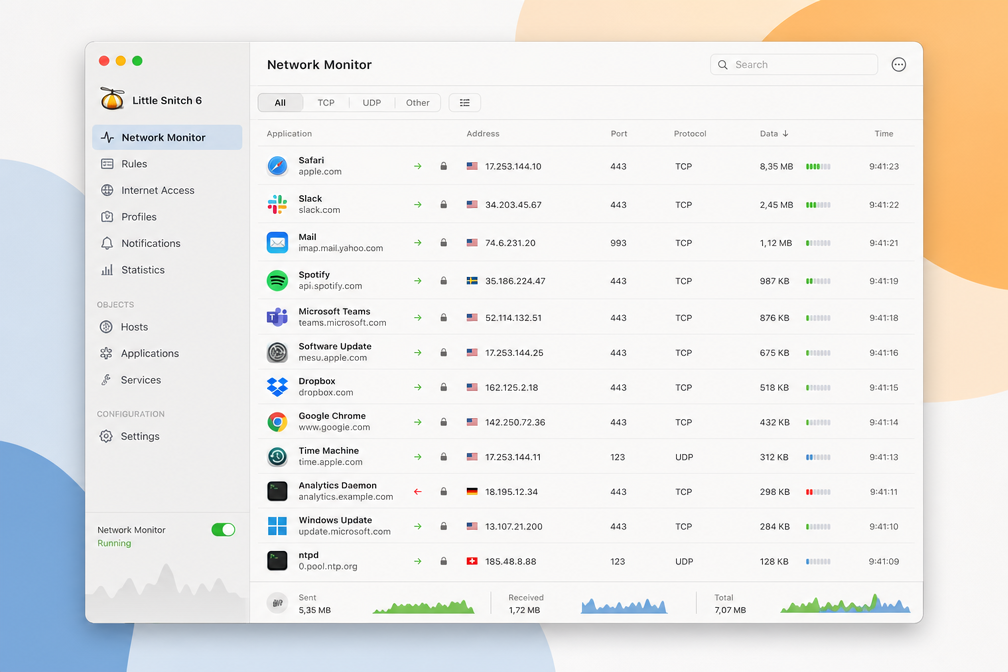
The core workflow is simple: when an app tries to connect outbound, Little Snitch pops a rule prompt asking you to Allow, Deny, or set a temporary rule. Over time, you build a ruleset that silently enforces your privacy preferences. Version 6, released in 2024, brought a redesigned UI, improved performance on Apple Silicon, and the new “Sentinel” mode that blocks all unknown connections until you explicitly approve them.
This Little Snitch 6 review focuses on the paid version (€39 for one license, €69 for family pack). A 30-day trial is available. It’s macOS-only – Windows and Linux users should look at alternatives like GlassWire or OpenSnitch.
Key features
Application-based firewall rules
Little Snitch 6’s core is still its per-application firewall rules, but version 6 makes them smarter. Instead of binary allow/block, you now get “Silent Mode” rules that auto-approve known good connections while still flagging suspicious ones. The rule editor is faster – you can drag-and-drop to reorder rules, and the new “Rule Suggestions” feature analyzes your traffic patterns to propose rules proactively. For power users, the “Advanced Mode” reveals connection details like TLS version and certificate info before you decide. This granularity is why this Little Snitch 6 review keeps coming back to it – no other Mac firewall gives you this level of per-app control without a steep learning curve.
Network monitor and traffic overview
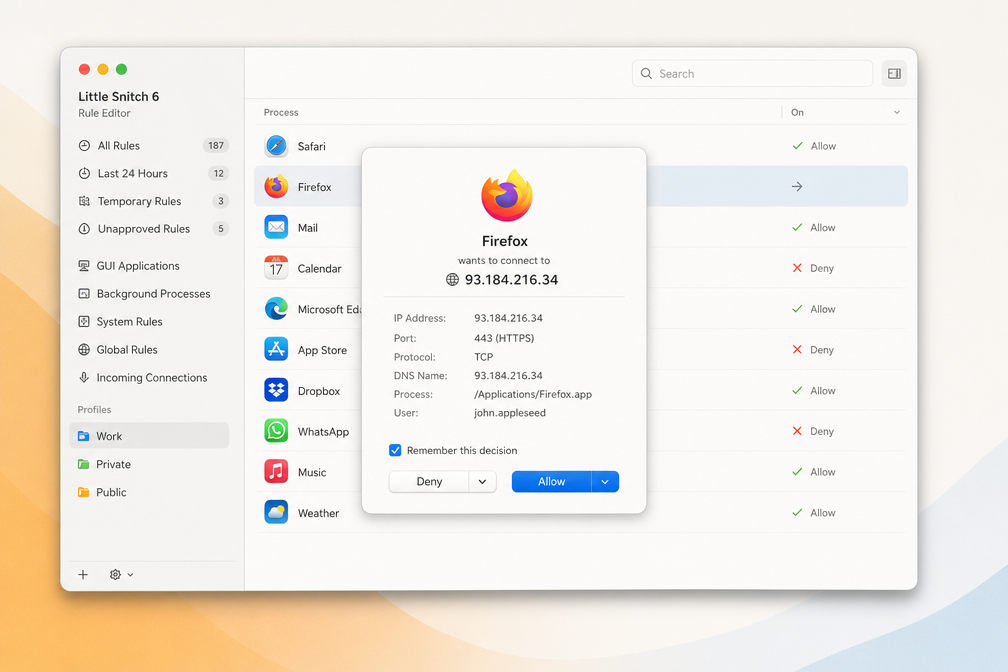
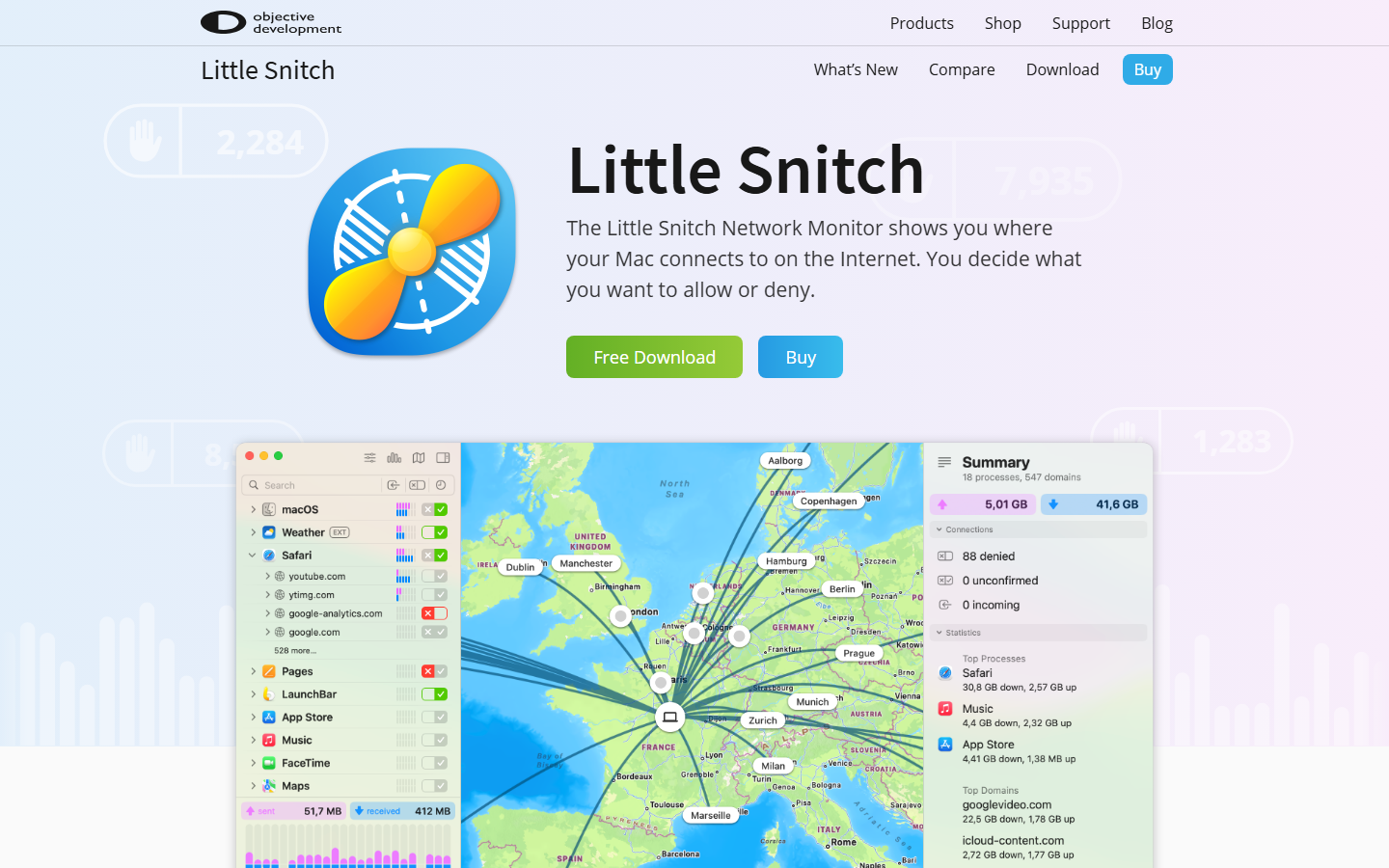
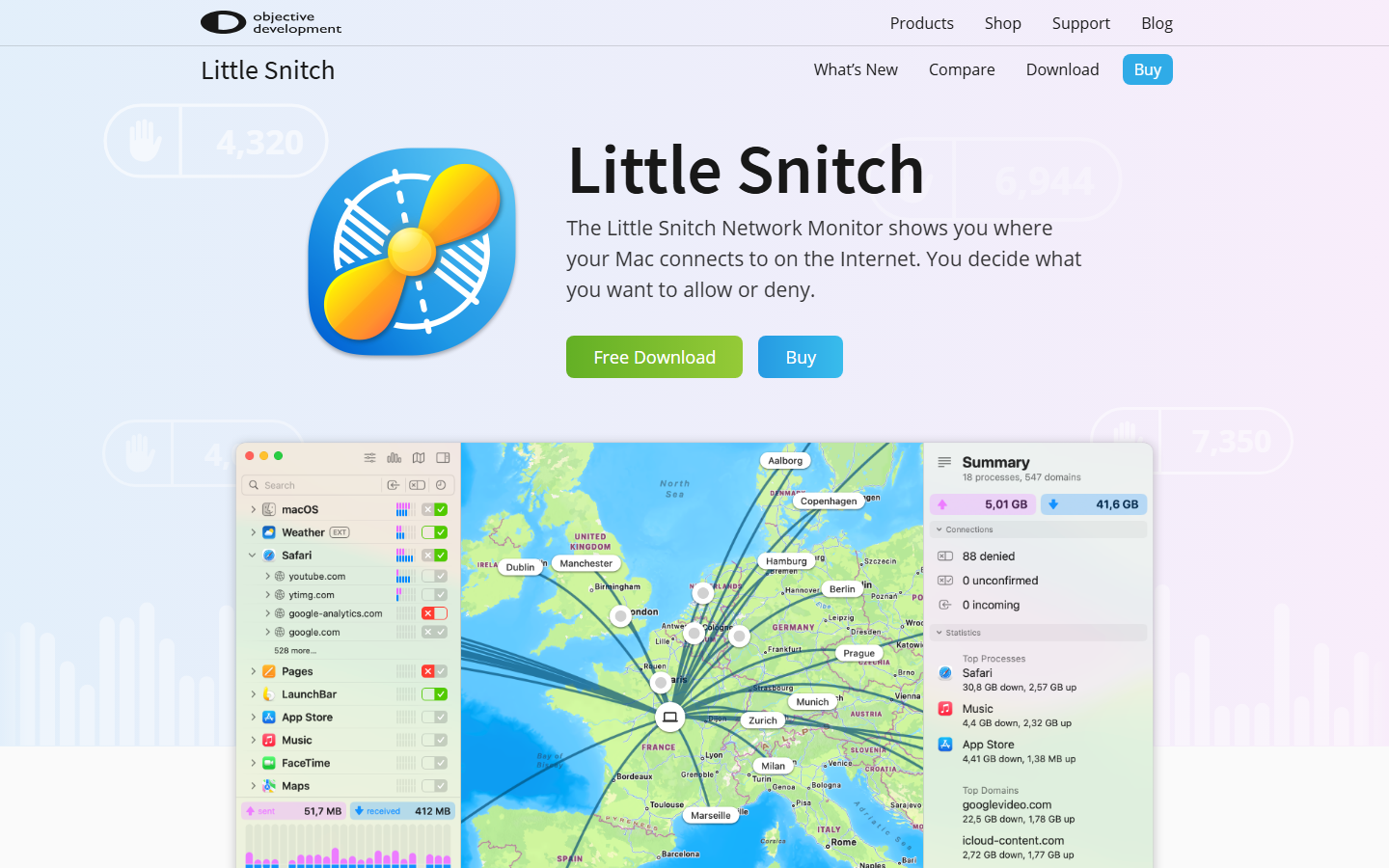
The redesigned Network Monitor is now a live dashboard, not just a log. You get real-time graphs showing bandwidth usage per app, with color-coded bars for inbound vs. outbound traffic. Click any app to drill into its connection history – which IPs it talked to, at what times, and how much data moved. A new “Top Talkers” section highlights the most chatty apps on your system. This visibility is invaluable for spotting malware or telemetry from apps you thought were idle. The monitor also logs connection attempts blocked by your rules, so you can audit what apps wanted to do versus what you allowed.
Encrypted DNS and advanced network settings
Version 6 finally adds built-in support for DNS over HTTPS (DoH) and DNS over TLS (DoT). You can configure encrypted DNS per network interface or globally, with presets for Cloudflare, Google, Quad9, or custom servers. This prevents DNS leaks and ISP snooping right from the firewall layer. The “Advanced Network Settings” panel also lets you set system-wide proxy rules, block IPv6 if your VPN leaks it, and configure stealth mode to ignore ping requests. These settings used to require terminal commands or third-party tools – now they’re a checkbox away. For privacy-conscious users, this alone justifies the upgrade.
Pricing and plans
| Plan | Price | Devices | Key Details |
|---|---|---|---|
| Single License | $49 (one-time) | 1 Mac | Lifetime updates for major version |
| Family Pack | $99 (one-time) | Up to 5 Macs | Same features, multi-device discount |
| Volume License | Contact sales | 10+ Macs | Tiered pricing for businesses |
Little Snitch 6 costs $49 for a single Mac license – a one-time purchase, not a subscription. That’s fair for what you get. The Family Pack at $99 covers up to 5 Macs, which is the better deal if you manage multiple machines. There’s no free tier, but a 30-day trial lets you test every feature before buying.
This Little Snitch 6 review confirms the pricing hasn’t changed from version 5. No hidden fees, no yearly renewal. You pay once and get updates within the 6.x cycle. Major version upgrades (to v7) will cost extra, but that’s typical for Mac firewall software.
How to use Little Snitch 6 – step-by-step
Step 1: Download and install
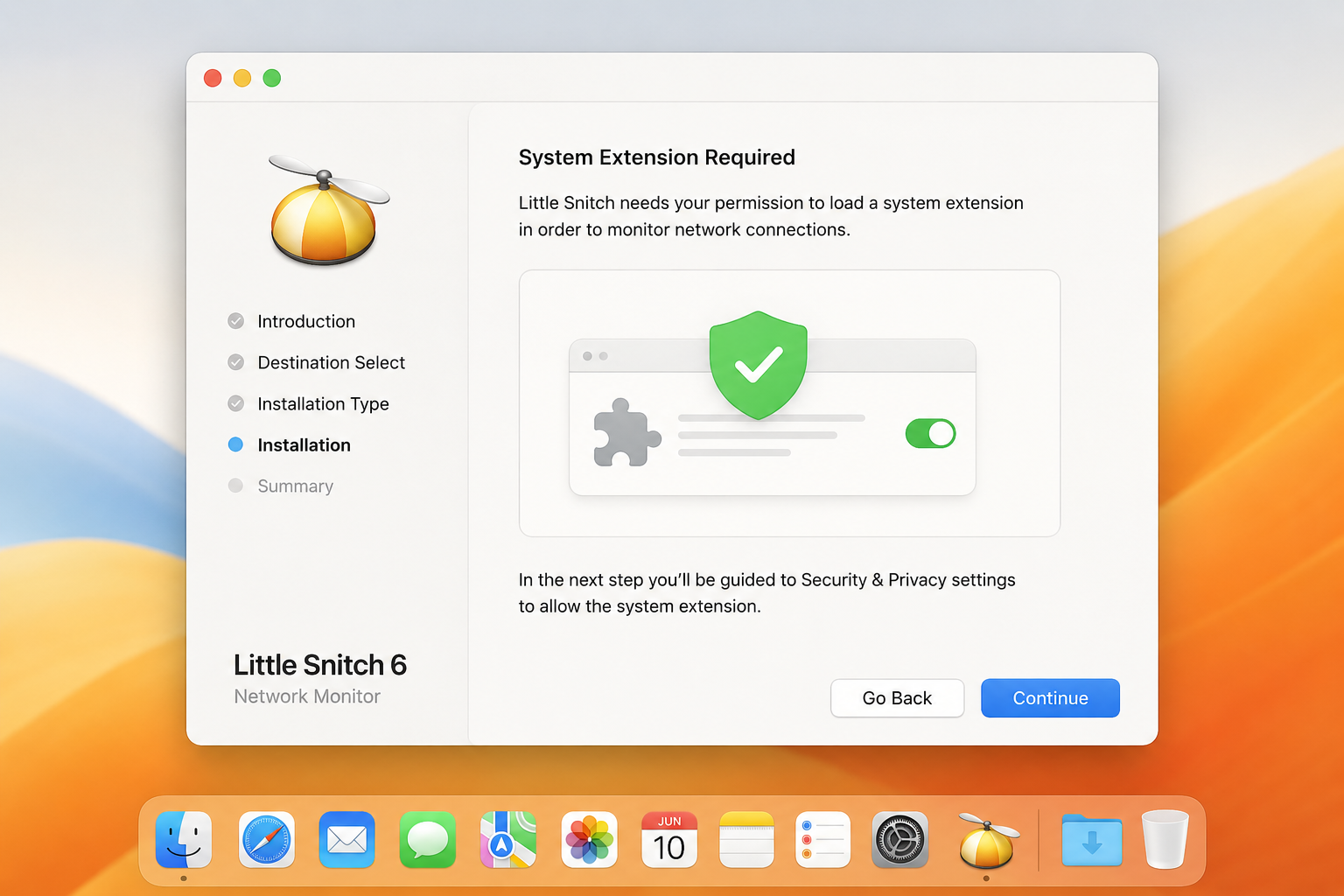
Visit the Objective Development website, grab the 30-day free trial, and run the installer. You’ll be prompted to grant system extension permissions in macOS Settings – approve both the network extension and the firewall extension. A reboot is required. After restart, Little Snitch launches its setup assistant, which walks you through basic preferences. The whole process takes about 10 minutes.
Step 2: Configure your first rule
When an app attempts a network connection for the first time, a connection alert pops up. You’ll see the app name, destination IP, port, and protocol. Choose Allow, Deny, or Limit (restrict to specific domains). For example, when you open Chrome, the alert shows connections to google.com. You can set a rule to “Allow Any Connection” permanently, or “Deny Once” to test behavior. Rules appear in the main window under “My Rules.”
Step 3: Set up Silent Mode and profiles
Silent Mode suppresses all alerts and automatically enforces existing rules – useful when you’re presenting or gaming. Toggle it from the menu bar icon. Profiles let you switch between rule sets for different contexts: “Home,” “Work,” “Public Wi-Fi.” Create a profile via the menu bar > Profiles > Manage Profiles. Assign it a specific set of rules – for Public Wi-Fi, you might deny all incoming connections and block file-sharing apps.

Step 4: Monitor network activity
Open the main window (click the menu bar icon > Show Little Snitch). The Network Monitor tab displays real-time connections: source app, destination, data volume, and connection state. Use the search bar to filter by app or domain. The Statistics tab shows traffic breakdown by app and protocol over time. This is where you spot suspicious outbound traffic – for instance, an unknown app phoning home to a Chinese IP address. Export logs via File > Export for deeper analysis.
This Little Snitch 6 review confirms: the monitoring interface is best-in-class for transparency. You see exactly what leaves your Mac.
Pros and cons
| Pros | Cons |
|---|---|
| Granular control over every outbound connection | Steep learning curve for non-technical users |
| Real-time network map visualizes traffic flow | macOS-only – no Windows or Linux version |
| Silent Mode reduces alert fatigue after initial setup | $59 license feels steep vs. free alternatives like LuLu |
| Profiles let you switch rules for home vs. work networks | Subscription model for Silent Mode history is a head-scratcher |
This Little Snitch 6 review wouldn’t be honest without calling out the tradeoffs. You get surgical precision over your Mac’s network traffic – unrivaled by any other consumer firewall. But that power comes with complexity. Expect to spend your first hour approving or denying connection alerts before the app learns your habits. The $59 price tag stings compared to LuLu’s free offering, especially when Silent Mode’s historical logs require a subscription. For privacy pros who want absolute control, the pros win. For casual users, the learning curve is a dealbreaker.
Alternatives to Little Snitch 6
Little Snitch 6 is powerful, but it’s Mac-only. If you need cross-platform protection or a different price point, here are the top alternatives.
Vallum
The closest Mac-native competitor. Vallum offers a simpler, more automated approach – fewer pop-ups, but less granular control than Little Snitch. It’s cheaper at $29 one-time, but its rule engine lacks the depth of Little Snitch’s connection logging. You’ll trade fine-grained oversight for quiet background operation.
GlassWire
Best for Windows users who want visual network monitoring. GlassWire’s real-time graphs make spotting traffic spikes intuitive. The free version is limited (data usage only); the Pro version ($49/year) adds firewall controls. It’s friendlier than Little Snitch 6 review suggests for Mac, but its Windows focus means Mac users should stick with Objective Development’s tool.
pfSense
For enterprise-grade, open-source routing. Free, runs on dedicated hardware, and includes Snort/Suricata IDS. The learning curve is brutal – this isn’t a desktop app. You need command-line comfort. It’s overkill for a single Mac, but the most powerful alternative for network-wide filtering.
Verdict: Stick with Little Snitch for Mac granularity. Switch to GlassWire for Windows visuals. Choose pfSense for total network control.
See our full firewall tools comparison
Verdict
Little Snitch 6 remains the gold standard for macOS network monitoring. At €59, it’s expensive, but the granular control over every outbound connection is unmatched. You get real-time alerts, detailed traffic logs, and a powerful rule system that feels like a superpower once configured.
This Little Snitch 6 review confirms it’s for power users who value privacy over simplicity. If that’s you, buy it. If you just want to block known trackers without thinking, a simpler app like LuLu is free and does 80% of the job. No regrets either way.
Frequently asked questions
Is Little Snitch 6 free?
Little Snitch 6 is not free. It costs $49 for a single license covering all Macs in your household, with a free 30-day trial available from the Objective Development website. That trial gives you full access to every feature, no credit card required.
Does Little Snitch 6 work on macOS Sequoia?
Yes, Little Snitch 6 fully supports macOS Sequoia (15.x) as of version 6.0.3, released in December 2025. It also works on macOS Sonoma (14.x) and Ventura (13.x), but drops support for Monterey and earlier.
Can Little Snitch 6 block all outgoing traffic?
Little Snitch 6 can block all outgoing traffic, but only if you configure its Silent Mode to “Deny All” or set a global rule to deny any unknown connection. By default, it prompts you to approve or deny each new connection request, which gives you granular control without accidentally cutting off essential services.
What is the difference between Little Snitch and macOS firewall?
macOS’s built-in firewall only blocks incoming connections, not outgoing ones – it’s a one-way filter. Little Snitch 6 monitors and controls both incoming and outgoing traffic, letting you see exactly which apps are phoning home and block them individually. For anyone concerned about data leaks or background app behavior, Little Snitch is the far more powerful tool.