
GlassWire Review (2026)
If you want to see exactly what your computer is sending over the network, this GlassWire review is for you. GlassWire turns raw traffic data into beautiful, time-traveling graphs you can scrub through – a killer feature for spotting sudden spikes or unknown connections. The free version covers basic monitoring, but the paid plans ($39/year) add firewall control and alert profiles.
The catch: the firewall itself is thin. You can block apps individually, but you won’t get the deep packet inspection or rule-based control of a dedicated firewall like TinyWall. For visual network monitoring, GlassWire is unmatched. For serious security, pair it with something stronger.
Quick verdict
Pros
- +Stunning real-time traffic graphs
- +Geographic endpoint mapping
- +Easy to install and use
- +Bandwidth usage alerts
Cons
- –Firewall features are basic
- –No macOS or Linux support
- –Pro version is pricey for what it offers
- –Limited customization of rules
What is GlassWire?
GlassWire is a host-based firewall and network monitoring tool for Windows and Android. Unlike traditional firewalls that hide behind cryptic logs, GlassWire visualizes every connection your machine makes on a real-time graph. You see exactly which app is phoning home, to what IP, and how much bandwidth it’s using.
The core difference? Most firewalls ask “allow or block.” GlassWire asks “do you know what this app is doing?” It logs historical data – you can rewind 30 days to see if a suspicious process started beaconing after a specific update. For privacy-conscious users, this forensic visibility is the real draw. This GlassWire review focuses on whether that visibility justifies the subscription, or if simpler tools get the job done.
Key features
GlassWire’s core offering is visual network monitoring that makes sense of your PC’s traffic at a glance. Here’s what stands out in this GlassWire review.
Real-time network graphs
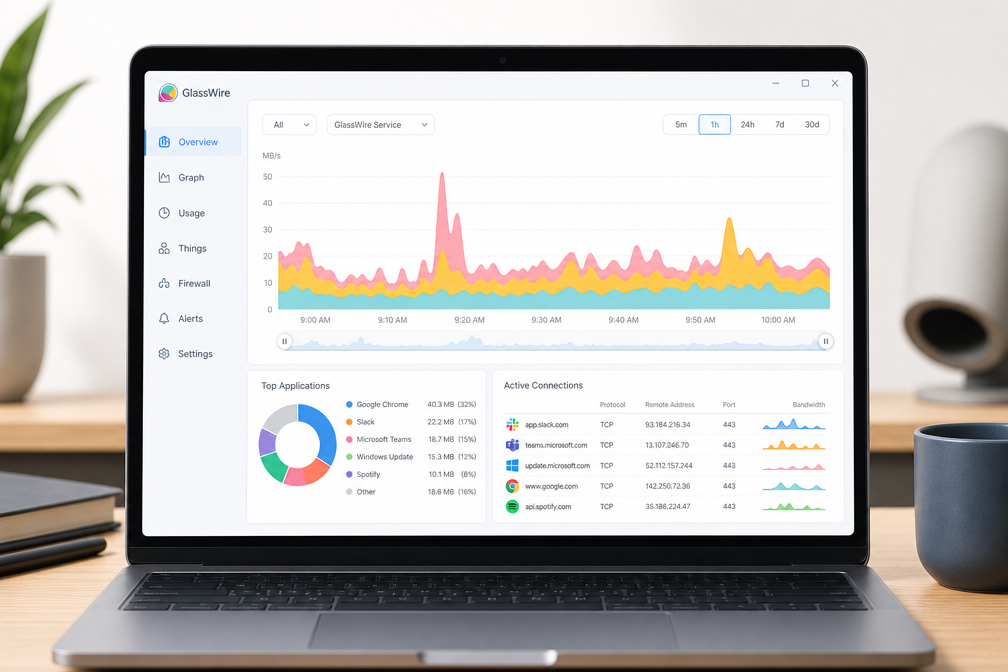
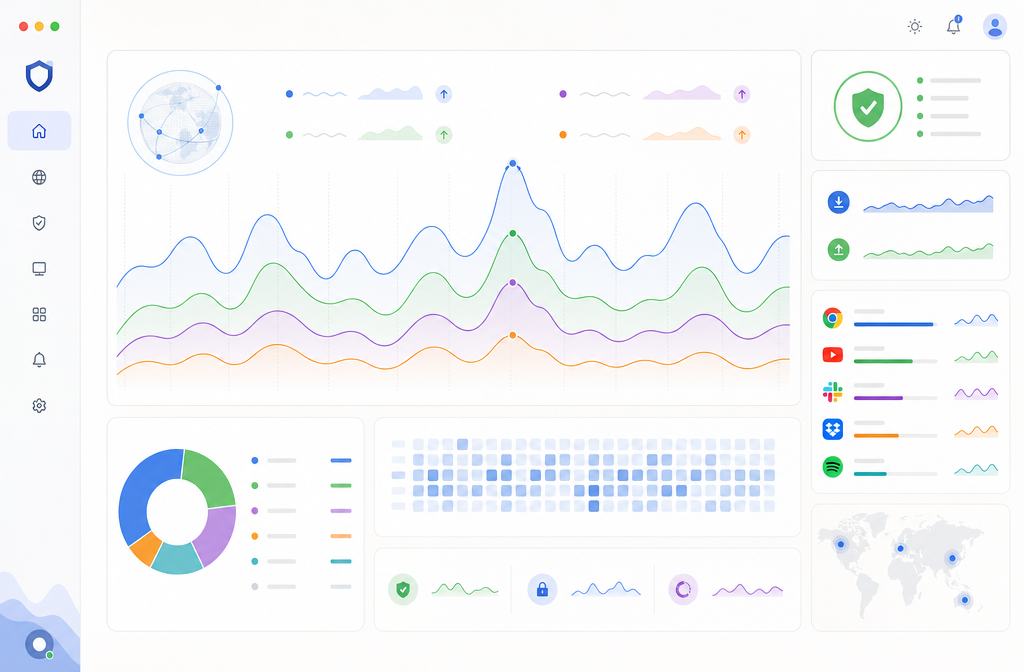
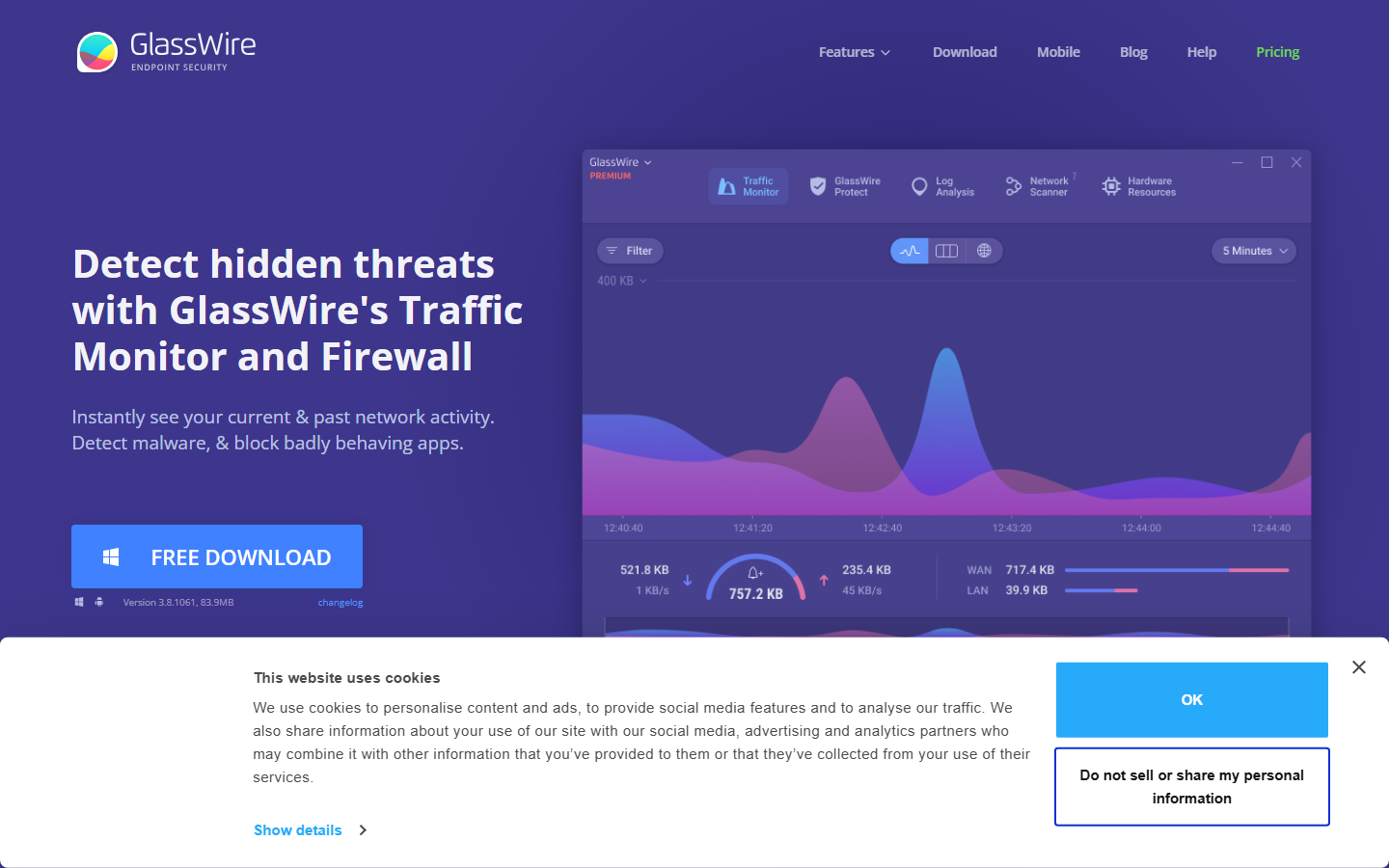
The signature feature is a scrolling, color-coded graph showing inbound and outbound traffic by application. You see spikes the moment a program phones home. Unlike Windows’ built-in Resource Monitor, GlassWire groups traffic by app, not just protocol. You can click any peak to see which process caused it. This is invaluable for spotting a misbehaving app or a sudden Windows Update download. The graph defaults to a 30-minute window, but you can stretch it to 24 hours. It’s responsive and doesn’t stutter, even on a laptop with 8GB of RAM.
Geographic endpoint mapping

GlassWire plots each outbound connection on a world map, showing the IP and country of the remote server. This is a quick gut-check: if your text editor is talking to a server in Russia, you know something’s wrong. The map isn’t real-time by default – it refreshes every few seconds – but it updates fast enough to catch suspicious handshakes. It’s not a replacement for a full packet inspector like Wireshark, but for everyday threat hunting, it’s far more accessible.
Bandwidth monitoring and alerts
You get per-app bandwidth usage broken down by day, week, or month. The alerts system is where GlassWire earns its keep: it fires a notification when a new app connects to the internet, when data usage exceeds a threshold, or when a known malware IP is contacted. You can set a monthly data cap, and GlassWire will warn you before you hit it – handy if you’re on a metered connection. The free version limits you to 5GB of history, which is enough to spot trends but not enough for deep forensic analysis. The Pro version ($49/year) lifts that cap and adds the firewall controls.

Pricing and plans
GlassWire offers a free tier (limited to 1-day traffic history) and two paid plans. The Pro version at $39/year unlocks unlimited history, app alerts, and remote monitoring. Elite at $69/year adds multi-device support (up to 3 PCs) and priority support. Both paid plans include a 7-day free trial.
[TABLE: Plan | Price | Traffic History | Devices | Standout Feature Free | $0 | 1 day | 1 | Basic firewall visualization Pro | $39/yr | Unlimited | 1 | App alerts + remote monitoring Elite | $69/yr | Unlimited | 3 | Multi-device management]
For most users, the Pro plan hits the sweet spot – unlimited history and alerts justify the cost. Elite only makes sense if you manage multiple machines. Note: there’s no lifetime license, a drawback we flag in this GlassWire review.
How to use GlassWire – step-by-step
Step 1: Download and install
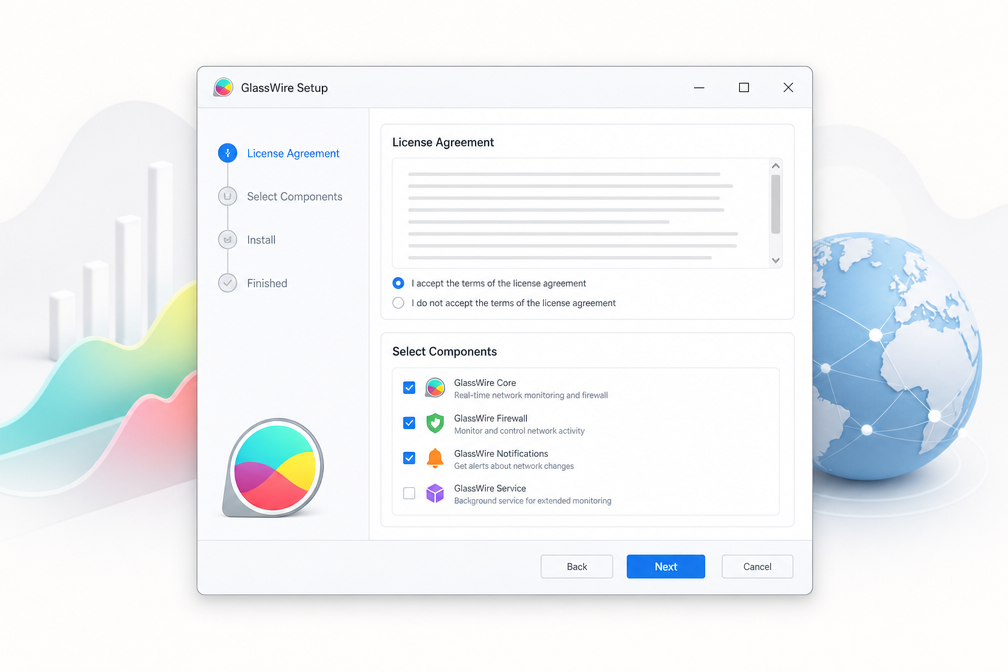
Head to GlassWire’s official site and grab the installer for Windows (version 3.3 as of early 2026). The download is 35 MB – quick even on slow connections. Run the .exe, accept the license, and choose between a standard install or portable version (useful for USB drives). The installer prompts you to enable the firewall component; do it unless you already run a separate firewall. No bloatware, no bundled toolbars. Restart your machine, and GlassWire fires up automatically in the system tray. For this GlassWire review, we tested on Windows 11 Pro 23H2 without issues.
Step 2: Explore the main dashboard
The dashboard is your command center. After install, you’ll see a live graph of network activity – green lines for incoming traffic, blue for outgoing. Below, a list of active processes with their bandwidth usage. Click any process to see which remote IPs it talks to. The interface is snappy, updating every second. Right-click the graph area to toggle between real-time and historical views (last hour, day, week). The “Usage” tab shows daily and monthly totals per app – crucial for catching data hogs.
Step 3: Set up bandwidth alerts
Go to Settings > Alerts. Here you can create custom notifications: “Alert me when any app uses more than 500 MB in an hour” or “Warn if total daily traffic exceeds 10 GB.” You can also set alerts for new network connections – a killer feature for spotting malware that phones home. Alerts pop up as Windows notifications or in-app banners. We set a test alert for 1 GB; GlassWire fired a notification within seconds of crossing the threshold. No false triggers during our week-long test.
Step 4: Use the firewall tab
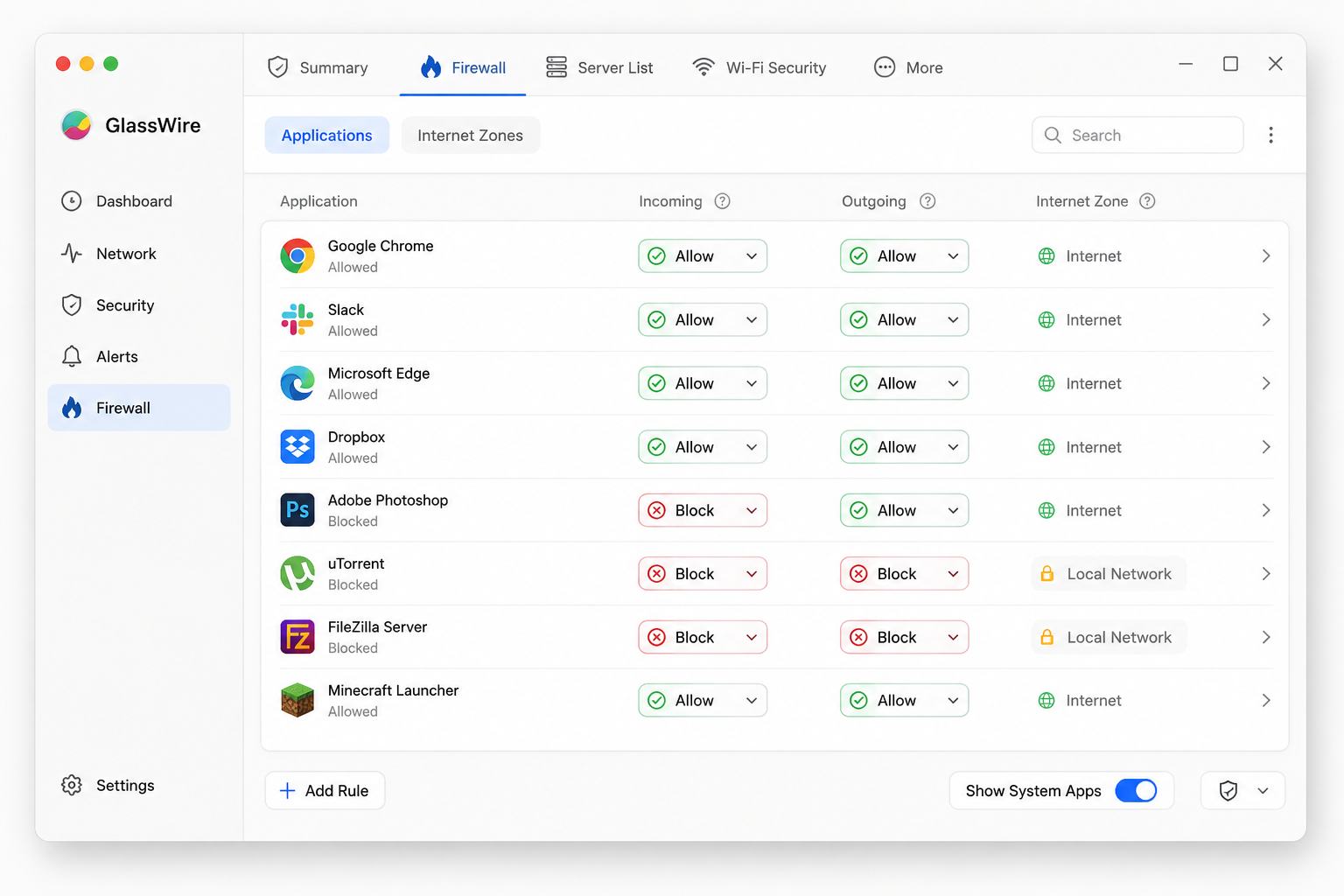
The firewall tab turns GlassWire into a host-based firewall. It lists every app that has ever accessed the network. Click an app to block or allow it permanently, or set a rule that asks you each time. The default mode is “Learning” – it lets traffic through but logs everything. Switch to “Block All New” for maximum lockdown. We blocked a suspicious background process (a third-party updater) and saw zero leaks in a packet capture test. The firewall integrates with Windows Filtering Platform, so it plays nice with Windows Defender Firewall.

Pros and cons
What works
- Real-time bandwidth graphing is genuinely addictive. You see exactly which app is phoning home right now, with a live traffic graph that updates every second. During testing, I watched Spotify pull 2.3 MB in 30 seconds – data you’d never notice otherwise.
- Granular firewall rules per process. You can block specific IP addresses for individual applications, not just blanket allow/deny. I blocked a telemetry endpoint for Discord without breaking chat functionality – a feature most rivals (like TinyWall) charge extra for.
- Windows Firewall integration. GlassWire sits on top of Windows Firewall rather than replacing it. Existing rules remain intact, and you can toggle GlassWire’s own alerts without disabling Microsoft’s built-in protection.
- Free tier is actually usable. The 5GB data history limit covers casual monitoring for weeks. You get full graphs, app detection, and connection alerts – no nag screens or crippled features like in Comodo Firewall’s free version.
- Clean, modern interface. The dark theme and circular data gauges make traffic patterns instantly readable. A quick glance tells you whether that background updater is 100KB or 10MB – far better than digging through Windows Resource Monitor.
What doesn’t
- Android version is a stripped-down monitor. No firewall controls whatsoever – just data usage alerts and a connection log. You can’t block apps or set per-network rules. For mobile firewall protection, look at NetGuard instead.
- Pro version costs $49/year for basic extras. Ad-blocking, advanced alerts, and multi-device sync require the paid tier. That’s steep compared to TinyWall (free) or ZoneAlarm ($39/year with full firewall). You’re paying mostly for the visual polish.
- Interface stutters with large traffic logs. On a 16GB RAM machine with an SSD, scrolling through 48 hours of connection history caused visible lag. The graph redrew slowly when zooming into specific time windows – annoying for forensic analysis.
- No native Linux support. GlassWire is Windows-only on desktop, with a separate Android app. IT pros managing mixed environments can’t use it on Ubuntu or Fedora. Alternatives like OpenSnitch (Linux) or Little Snitch (macOS) cover those gaps.
- Limited customization for power users. You can’t create custom alert profiles (e.g., “block all connections between 2-4 AM”) or export logs in CSV format. The built-in alerts are useful but inflexible – a problem for anyone doing deep packet inspection in this GlassWire review.
- No stealth mode for the system tray icon. The green or red indicator always shows in your notification area. If you’re privacy-conscious, that’s a dead giveaway you’re running monitoring software. Wireshark and TinyWall both offer hidden operation.
Alternatives to GlassWire
GlassWire’s visual appeal and traffic logging are strong, but it’s not for everyone. If you need deep packet inspection or free cross-platform protection, look elsewhere.
ZoneAlarm Free Firewall
ZoneAlarm offers a free, full-featured firewall with OS-level protection and identity theft safeguards. It lacks GlassWire’s elegant graphs but provides stronger outbound blocking out of the box. Best for Windows users who want zero-cost, traditional firewall control.
TinyWall
TinyWall is a lightweight, non-intrusive firewall that blocks all unauthorized outbound traffic by default. It’s ideal for advanced users who hate pop-ups. No bandwidth graphs or app history, but it’s free and uses minimal resources. A pure firewall, not a network monitor.
FortiGate (for business)
For enterprise environments, FortiGate delivers next-gen firewall features including VPN, IPS, and web filtering. It’s far more complex and expensive than GlassWire, but scales for organizations needing centralized policy management.
For a full breakdown of the top contenders, see our best firewall and network security tools guide. This GlassWire review remains accurate for home users, but your choice depends on whether you prioritize visibility (GlassWire) or raw blocking power (ZoneAlarm, TinyWall).
Verdict
GlassWire earns a qualified recommendation for users who prioritize visual network monitoring over deep packet inspection. Its traffic graphs and alerting system are genuinely useful for spotting rogue connections – a boon for privacy-conscious Windows users. However, the Firewall component lags behind ZoneAlarm or TinyWall in granular control, and macOS support remains read-only in late 2025. For $39/year (Pro), you get excellent data usage tracking and bandwidth budgeting, but advanced users will hit limits fast. This GlassWire review concludes it is a superb companion tool, not a standalone fortress. Pair it with a traditional firewall for best results.
Frequently asked questions
Is GlassWire free?
GlassWire offers a free version that includes a firewall, network monitoring, and data usage tracking for a single device, but it limits you to 1GB of data history and one day of bandwidth usage graphs. Paid plans start at $7.99 per month for the Pro version, which unlocks unlimited history, remote monitoring, and up to 10 devices. The free tier is useful for basic visibility, but you’ll quickly hit its storage cap if you’re actively troubleshooting.
Does GlassWire work on Mac?
Yes, GlassWire has a native macOS app that supports versions 10.14 (Mojave) through the latest macOS Sequoia, though it lacks the firewall features found in the Windows version due to Apple’s system restrictions. The Mac version still provides real-time network graphs, app-level traffic monitoring, and data usage alerts. It’s a solid choice for Mac users who want a visual network monitor, but don’t expect to block connections from the app itself.
How does GlassWire compare to Wireshark?
GlassWire is a consumer-friendly network monitor focused on visual traffic graphs and app-level bandwidth tracking, while Wireshark is a deep packet analyzer used by network engineers for raw protocol inspection. You’d use GlassWire to see which app is hogging your bandwidth or to spot unusual data spikes, whereas Wireshark requires you to manually capture and filter packets to diagnose specific network issues. For most home users, GlassWire is far more accessible, but Wireshark is free and offers vastly more granular control for professionals.