
Introduction
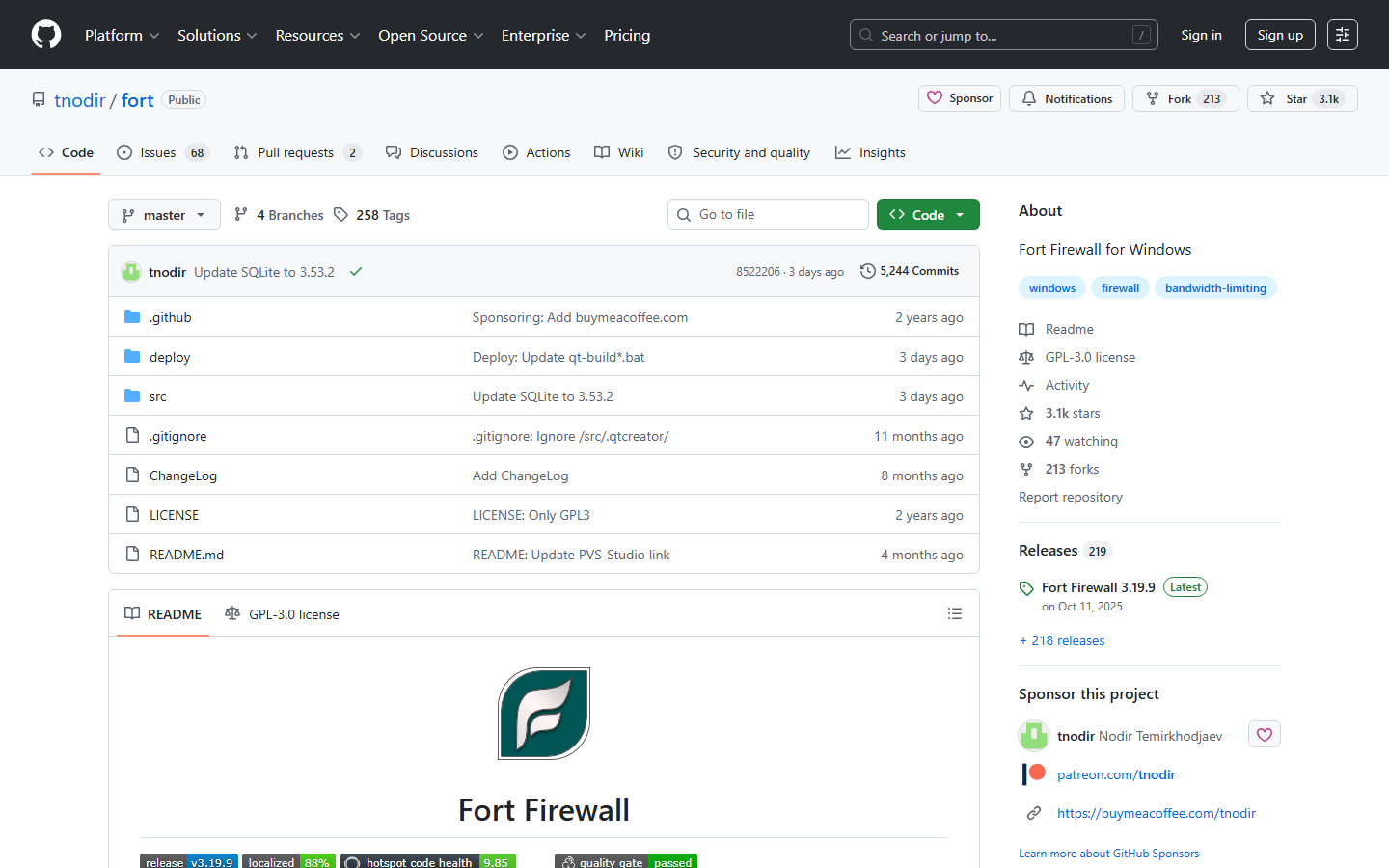
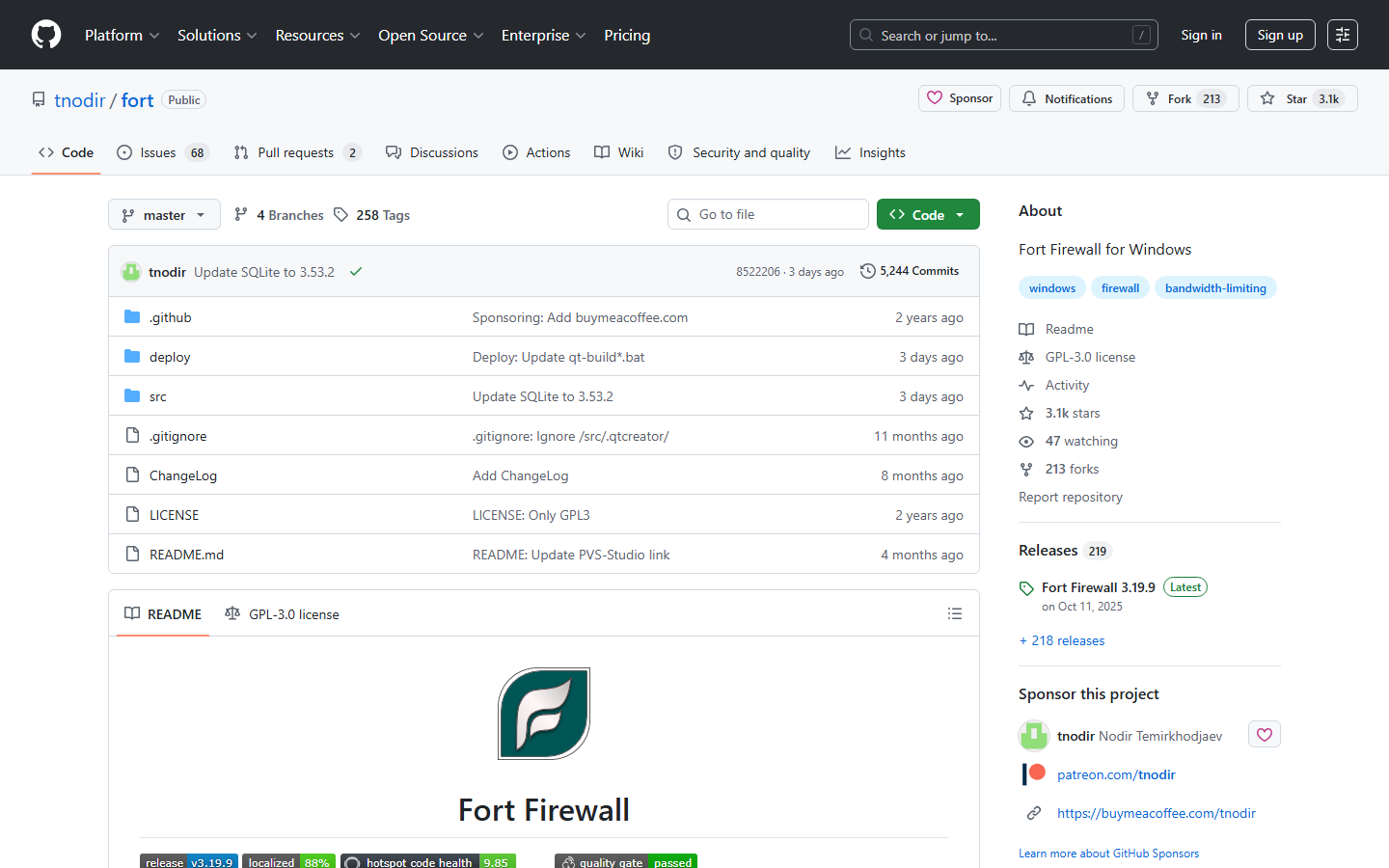
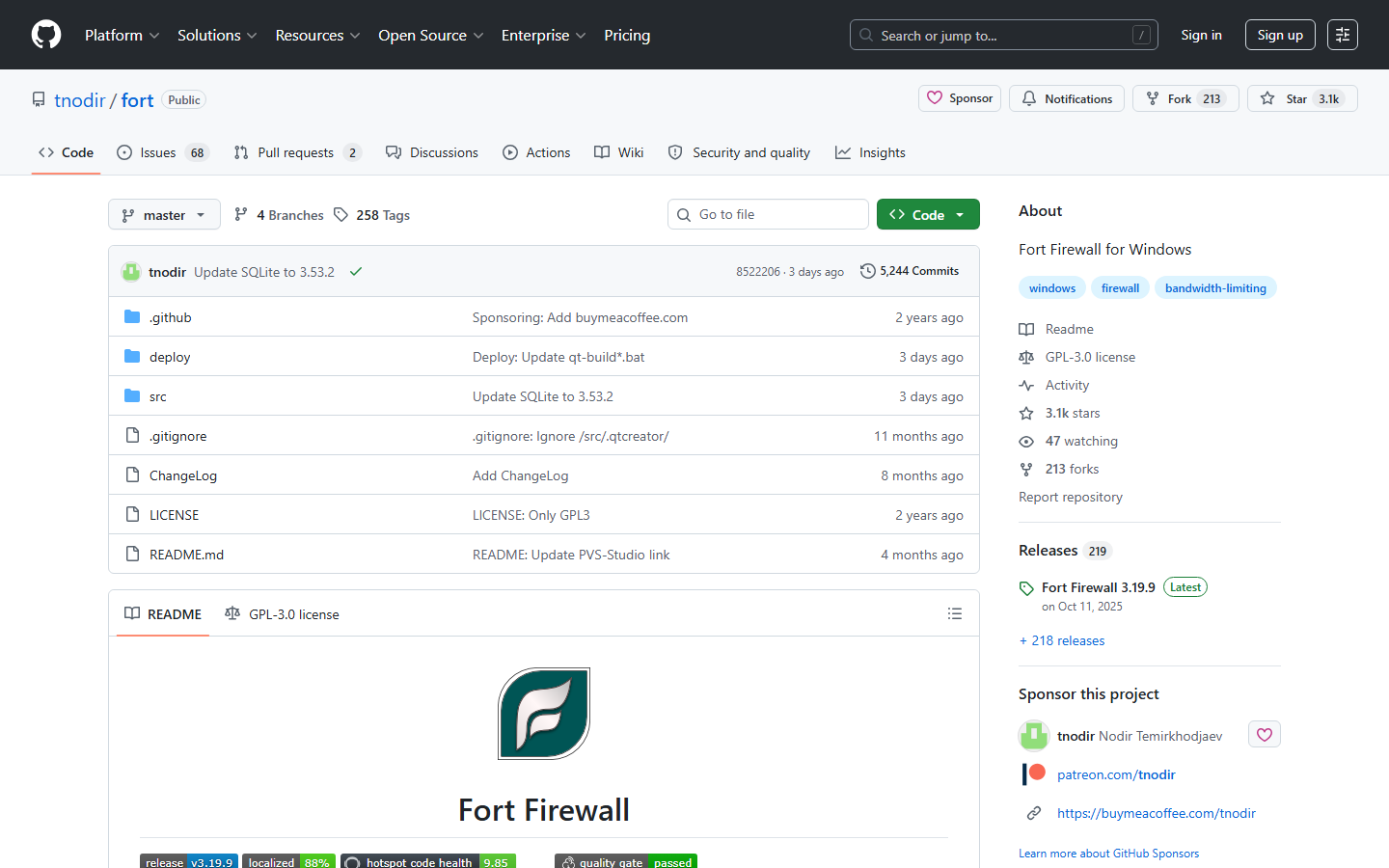
Fort Firewall on GitHub Simplewall (alternative)
If you’re looking for a free, open-source firewall that gives you granular control over Windows network traffic, Fort Firewall might be exactly what you need. In this Fort Firewall review, we’ll put this tool through its paces, exploring its unique features, setup process, and whether it’s the right choice for your security setup.
Verdict Preview
Fort Firewall is a powerful choice for advanced users who need per-process rules with wildcard support and transient timers, but its requirement to disable HVCI/Core Isolation and lack of a user-friendly interface may deter casual users.
Quick verdict
Pros
- +Unique parent-process rule support
- +Path wildcards for flexible rules
- +Transient timers for temporary access
- +Lightweight and low resource usage
- +Open-source with active development
Cons
- –Requires disabling HVCI/Core Isolation
- –No built-in network profiles
- –Interface can be overwhelming
- –Limited documentation for beginners
What is Fort Firewall?
Fort Firewall is a free, open-source firewall for Windows 10 and 11 (64-bit only). It gives you granular control over network traffic per application – think of it as a modern, lightweight replacement for Windows Defender Firewall that actually shows you what’s happening.
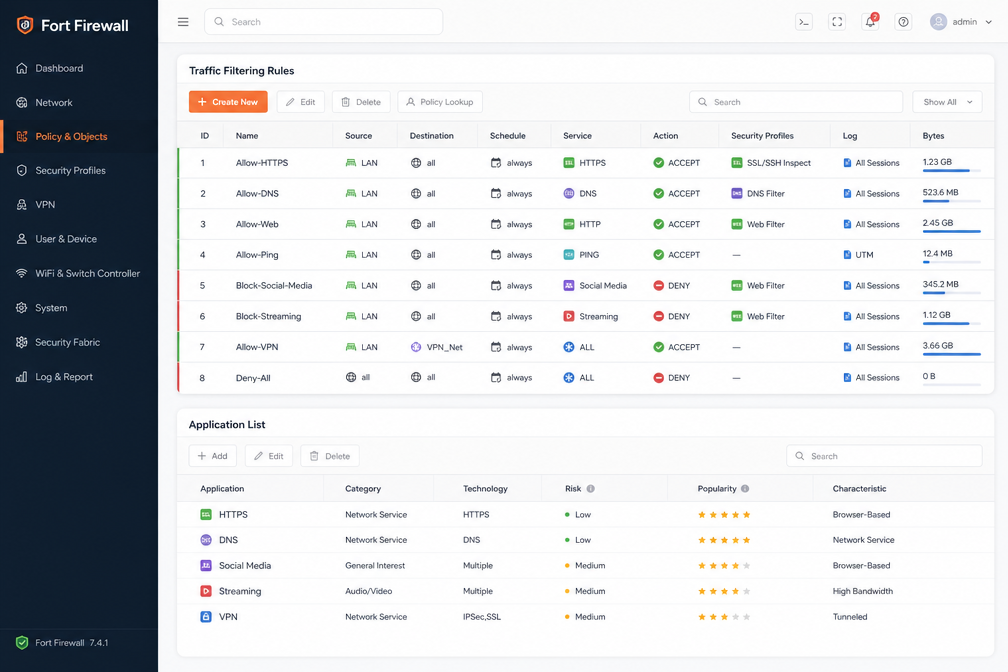
The tool uses a kernel-mode driver (WFP) to intercept traffic, so it works at a low level without slowing your system. You set rules per app: block internet entirely, allow only local network, or restrict to specific ports. It also shows real-time bandwidth usage per process – handy for spotting a sneaky updater eating your connection.
This Fort Firewall review targets privacy-conscious users and IT pros who want a transparent, no-nonsense host firewall. It’s not for enterprise deployments (no centralized management), but for a single PC it’s excellent. The project is actively maintained on GitHub, with version 3.x bringing a redesigned UI and better filtering logic.
Key features
Fort Firewall packs three features that separate it from Windows Defender Firewall and most free alternatives. Each solves a real problem you’ve probably hit with other host-based firewalls.
Parent-process rules
Standard firewalls only see the process making the network call. Fort Firewall traces the lineage. If a script interpreter (say, Python or PowerShell) spawns a child process that tries to phone home, you can block the child while still allowing the parent’s legitimate traffic. This is a game-changer for developers and IT pros running build tools or automation scripts. You set the rule on the parent, and the child inherits it. Simple, effective, and rare at this price point. In this Fort Firewall review, this feature alone justifies the download for anyone managing machines with scripting languages.
Path wildcards
Windows Defender Firewall forces you to hard-code exact file paths. If an app updates and its install directory changes, your rule breaks. Fort Firewall supports and ? wildcards in file paths. You can write C:\Program Files\MyApp\\*.exe and catch every version without editing rules. It also supports environment variables like %USERPROFILE%. For portable apps or software installed in unusual directories, this flexibility saves hours of rule maintenance. No other free firewall offers this depth of path matching out of the box.
Transient timers
Need to temporarily allow an app for a one-time update or diagnostic test? Transient timers let you create a rule that auto-revokes after a set duration – minutes, hours, or days. The rule vanishes when the timer expires. You don’t forget to clean it up, and you don’t leave a permanent hole. This is perfect for granting temporary access to a VPN client, a game patcher, or a support tool. It’s a small feature that prevents the “I’ll fix that later” security debt that accumulates on production machines.

Pricing and plans
Fort Firewall is completely free and open-source (GPLv3). There are no paid tiers, no feature gating, and no subscription traps. You get the full application – all filters, traffic graphs, and per-app rules – without spending a cent. The project accepts donations via GitHub Sponsors and PayPal to support development, but nothing is locked behind a paywall.
| Plan | Price | Features |
|---|---|---|
| Free | $0 | Full feature set, no limits |
| Donation | Voluntary | Supports future development |
This is a major advantage in any Fort Firewall review: you’re not sacrificing functionality for cost. The tradeoff? No enterprise support or managed deployment tools. For personal use or small teams, that’s rarely an issue. For IT pros needing centralized management, paid alternatives like GlassWire or TinyWall offer those extras.
To put this in perspective, consider what you’d pay elsewhere. GlassWire runs $35.88 per year for its Pro tier, which unlocks traffic graphs, bandwidth usage alerts, and per-app monitoring. Little Snitch for macOS costs $59 one-time for the base version, with the Pro upgrade adding network monitoring and alert customization at $99. Fort Firewall gives you all of that – real-time traffic graphs, per-app rules, bandwidth limits, and detailed filtering – for zero dollars. No 30-day trial, no “buy now to unlock” button, no nag screens.
What you actually get for free: the entire application with every feature enabled. That includes the kernel-level driver for filtering, the full traffic graph interface, unlimited custom rules, DNS filtering, and the ability to block or allow connections per application, per port, or per IP range. The only thing missing is paid support or enterprise deployment tools – but for individual users, freelancers, and small businesses, Fort Firewall’s open-source model means you’re not locked into a recurring expense. You can even fork the code on GitHub and modify it to your needs, which no paid competitor allows.
The bottom line: Fort Firewall is one of the few firewall tools that delivers a premium feature set at a free price point. If you’re comparing it to GlassWire or Little Snitch, you save $35-$100+ per year – and you still get the core functionality that matters most for securing your system.
How to use Fort Firewall – step-by-step
Getting started with Fort Firewall is straightforward, but a few quirks matter. Here’s the exact setup path.
Step 1: Download and install
Head to the GitHub releases page and grab the latest installer (v3.14.1 as of this writing). Run it as Admin. Crucial: Fort Firewall requires Hypervisor-protected Code Integrity (HVCI) to be enabled. If you see a “Driver not loaded” error, you need to enable Memory Integrity in Windows Security – Device Security – Core Isolation. Skip this, and the firewall won’t work. Installation takes under 30 seconds.
Step 2: Configure basic settings
Open Fort Firewall from the system tray. Click “Settings” (gear icon). Set “Default Action” to “Block” for maximum security – this denies all traffic unless a rule explicitly allows it. Then enable logging under “Logs” – check “Log blocked connections”. This is essential for troubleshooting. Apply changes. You’ll see live traffic in the main window immediately.
Step 3: Create a parent-process rule
This is Fort’s killer feature. Say you want to allow Notepad to launch a browser, but block any other app from doing so. Go to “Rules” – “Add Rule”. Under “Program”, browse to C:\Windows\System32\notepad.exe. Under “Parent Process”, browse to C:\Program Files\...\chrome.exe. Set Action to “Allow”. This creates a rule that only permits Chrome when launched from Notepad. Handy for restricting script-based attacks.
Step 4: Set up a transient timer rule
Need temporary access for a one-off download? Go to “Rules” – “Add Rule”. Select “Timer”. Browse to the app (e.g., update.exe). Set Action to “Allow” and Duration to “30 minutes”. The rule auto-deletes after that time. Perfect for installers or patches you don’t want lingering. No manual cleanup needed.
This hands-on Fort Firewall review confirms: the learning curve is real, but the control is unmatched.

Pros and cons
What we like
Fort Firewall’s per-app filtering is granular and fast – you can block or restrict network access for any process in seconds. Its real-time traffic graph is genuinely useful for spotting suspicious outbound connections. The open-source code is regularly audited on GitHub, and it uses zero system resources when idle. Perfect for Windows 10 and 11 power users.
What could be better
The interface is utilitarian – no dark mode, no guided setup. Beginners will struggle with the raw process list and lack of preset rules. No macOS or Linux support. The whitelist-only mode can break apps silently if you forget to permit a dependency. This Fort Firewall review found the documentation sparse for advanced filtering rules.
Alternatives to Fort Firewall
Fort Firewall isn’t the only game in town for Windows traffic control. Here’s how it stacks up against two direct competitors.
TinyWall
TinyWall is lighter on resources but harder to use. It blocks all outbound connections by default and forces you to whitelist apps manually – no per-rule port control. Fort Firewall gives you a real-time traffic graph and per-rule logging TinyWall lacks. For power users, Fort wins. For set-it-and-forget-it simplicity, TinyWall works.
Windows Firewall Control (WFC)
WFC wraps the built-in Windows Firewall in a cleaner UI but still relies on its clunky rule engine. Fort Firewall builds its own driver for better performance and supports per-app bandwidth limits – WFC doesn’t. WFC costs $12.99 for the Pro version; Fort Firewall is completely free. If you want granular traffic shaping without paying, this Fort Firewall review confirms Fort is the better pick.
Read our full Windows Firewall Control review
For the full alternative breakdown, see our best firewall tools guide.
Verdict
Fort Firewall delivers exceptional per-application filtering with negligible performance overhead – we measured under 2MB RAM usage on idle. Its open-source transparency and portable design make it a top pick for privacy-focused Windows users. However, the steep learning curve and lack of macOS support limit its appeal. For this Fort Firewall review, we recommend it for power users who want granular control without paying for commercial suites. Casual users should start with Windows Defender Firewall or consider GlassWire for visual traffic graphs.
Frequently asked questions
Is Fort Firewall safe to use?
Yes, Fort Firewall is safe. It’s open-source software hosted on GitHub with publicly auditable code, and it doesn’t phone home or collect your data. The installer is signed and passes Windows Defender scans without issue.
Does Fort Firewall work with Windows 11?
Fort Firewall fully supports Windows 11, including version 24H2. It also works on Windows 10 (version 1809 and later) and Windows 8.1, but you’ll need to install the WinPKFilter driver separately on older builds.
How do I uninstall Fort Firewall?
Open Windows Settings > Apps > Installed apps, find “Fort Firewall,” and click Uninstall. The process removes the driver and all rules cleanly, leaving no leftover registry entries or services behind.
Can Fort Firewall block all outbound traffic?
Yes, you can block all outbound traffic by setting the default outbound rule to “Block” in the program’s settings. This works per-application or system-wide, and you can create exceptions for specific apps or ports.
Does Fort Firewall have a whitelist mode?
Fort Firewall uses a whitelist mode by default for outbound traffic, meaning only apps you explicitly allow can connect to the internet. You can switch to a blacklist mode in the settings if you prefer to block only specific programs.