WG Tunnel review: auto-tunneling, AmneziaWG censorship bypass, kill switch, and SOCKS5 proxy. Is it better than the official WireGuard app?

Best for: Self-hosters and privacy-focused Android users who want automated, policy-driven WireGuard tunneling
Not for: Users who do not already have a WireGuard server or want a plug-and-play VPN service
Price: Free and open source (GPL-3.0)
- ✓ Auto-tunneling rules per SSID eliminate manual connect/disconnect
- ✓ AmneziaWG support bypasses deep packet inspection in restricted regions
- ✓ Built-in SOCKS5 and HTTP proxy routes other devices through the tunnel
- ✓ Lockdown mode blocks all traffic if the tunnel drops unexpectedly
- ✓ Fully open source with active GitHub commit history
- − Requires your own WireGuard server – no built-in server included
- − More configuration screens than the official app; steeper initial setup
- − Desktop version is early-stage; Android remains the primary platform
- − No GUI-based key generation – you import existing config files
What is WG Tunnel?
WG Tunnel is an open-source WireGuard client for Android – not a VPN service. You bring your own server (or a config file from a provider that supports WireGuard), and WG Tunnel handles the connection. Think of it as a smarter front-end for the WireGuard protocol, with the automation and policy controls the official app deliberately leaves out.
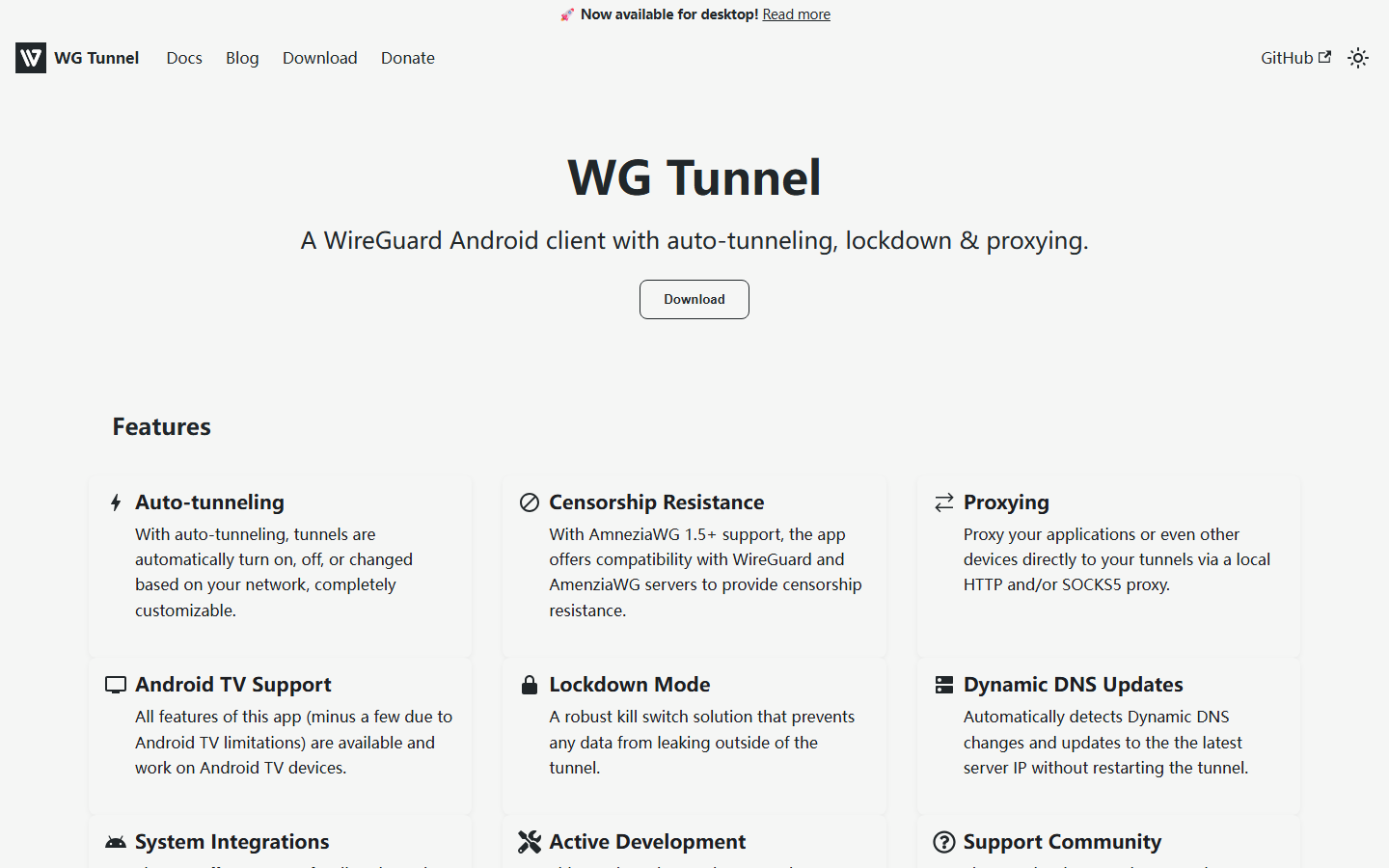
The app is licensed under GPL-3.0 and developed in the open at github.com/wgtunnel/wgtunnel. That matters because it means you, or anyone else – can audit the code, build it from source, or fork it. There is no telemetry pitch to take on faith.
It speaks two protocols: standard WireGuard and AmneziaWG, a fork engineered to disguise WireGuard traffic so it survives in regions where the protocol is actively blocked (more on that later). The official WireGuard Android app only supports the former.
You can install it from Google Play, F-Droid, or directly from the GitHub releases page. A desktop build was recently announced and is currently available for Windows, with other platforms in progress – a meaningful expansion for a project that started life as a pure Android tool.
How it differs from the official app
The official WireGuard app, maintained by the protocol’s authors, is intentionally minimal. It imports a config, connects, disconnects. That is the entire feature set by design.
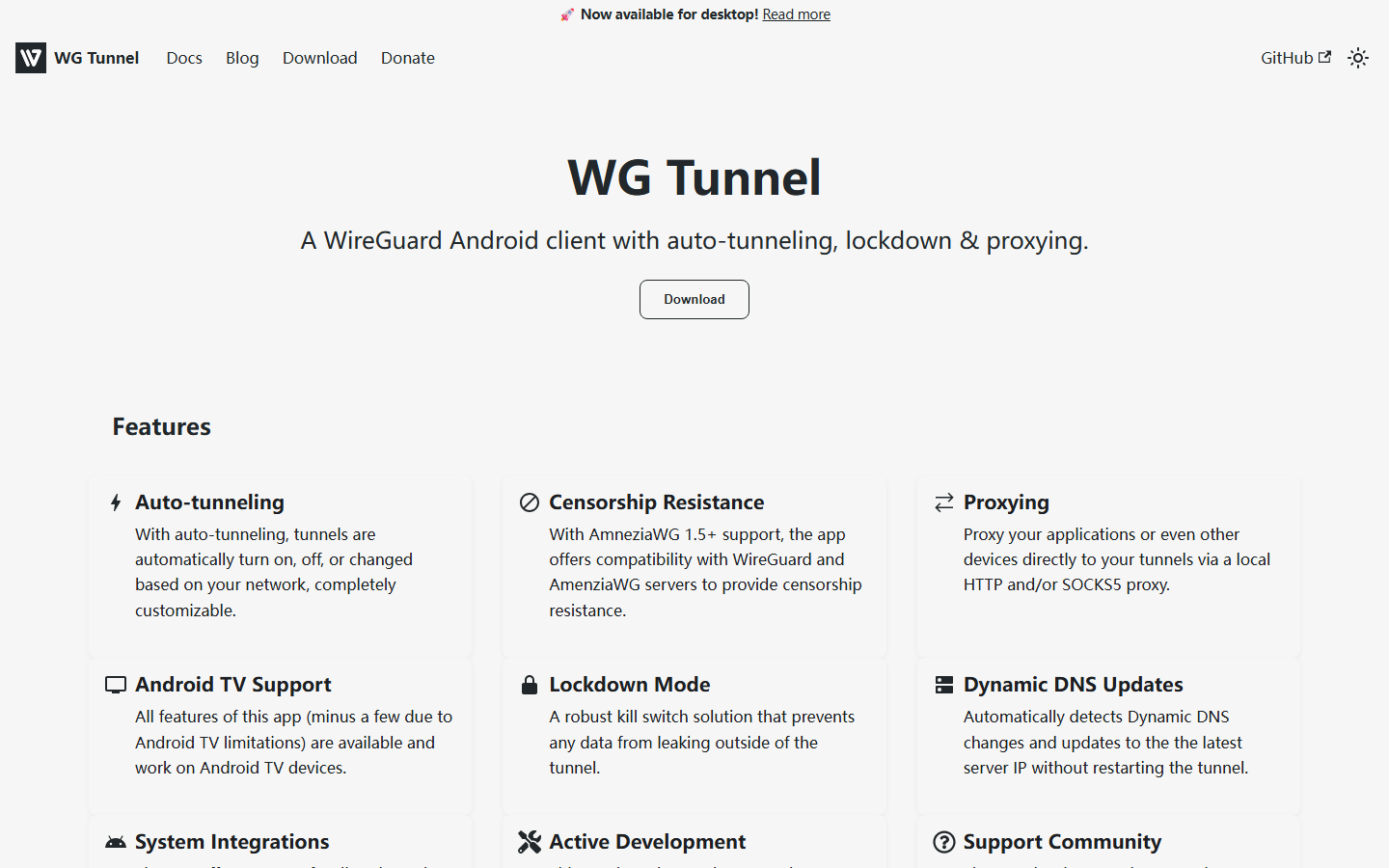
WG Tunnel keeps that core and layers on auto-tunneling rules, lockdown mode, SOCKS5 and HTTP proxy support, dynamic DNS refresh, Tasker hooks, Android TV builds, and quick-settings tiles. Same protocol underneath, dramatically more control over when and how it engages.
WG Tunnel vs the official WireGuard Android app
Both apps run the same underlying WireGuard implementation, so raw tunnel performance is identical. The difference is everything around the tunnel: how it starts, when it stops, what it blocks, and how it integrates with the rest of your phone.
The official WireGuard Android app is intentionally minimal. The maintainers treat it as a reference client – a clean, audited way to bring a tunnel up and down. WG Tunnel is built for people who want the tunnel to behave like a managed service.
| Feature | WG Tunnel | Official WireGuard app |
|---|---|---|
| Auto-tunneling / network-based rules | Yes – per-SSID trusted networks, Wi-Fi vs mobile rules, Ethernet detection | No – manual toggle only |
| AmneziaWG / censorship resistance | Yes – full AmneziaWG protocol support | No |
| Kill switch / lockdown mode | Dedicated lockdown mode plus Android’s “Always-on VPN” | Relies on Android’s “Always-on VPN” only |
| SOCKS5 and HTTP proxy | Yes – built-in local proxy server | No |
| Dynamic DNS auto-update | Yes – periodic endpoint re-resolution | No – endpoint resolved at connect time |
| Tasker / broadcast integration | Yes – intents for tunnel control and Quick Settings tiles | Limited – basic intent support |
| Android TV support | Yes – dedicated TV layout | Works but not TV-optimized |
| Desktop availability | Yes – Windows client released | No official desktop client from this project |
| Open source license | MIT | Apache 2.0 / GPLv2 |
| Active development cadence | Frequent releases, active GitHub and Telegram/Matrix channels | Slower, conservative release pace |
The honest takeaway: if you connect to one server, on one network, and just want a VPN button, the official app is fine and arguably the safer default. If you want the tunnel to know the difference between your home Wi-Fi and a hotel network, survive a DNS change, or punch through DPI in a restricted country, WG Tunnel is the only Android client that does all of that in one package.
Key features
WG Tunnel’s value isn’t in any single headline feature – it’s in the stack. Each one solves a real problem the official WireGuard app ignores.
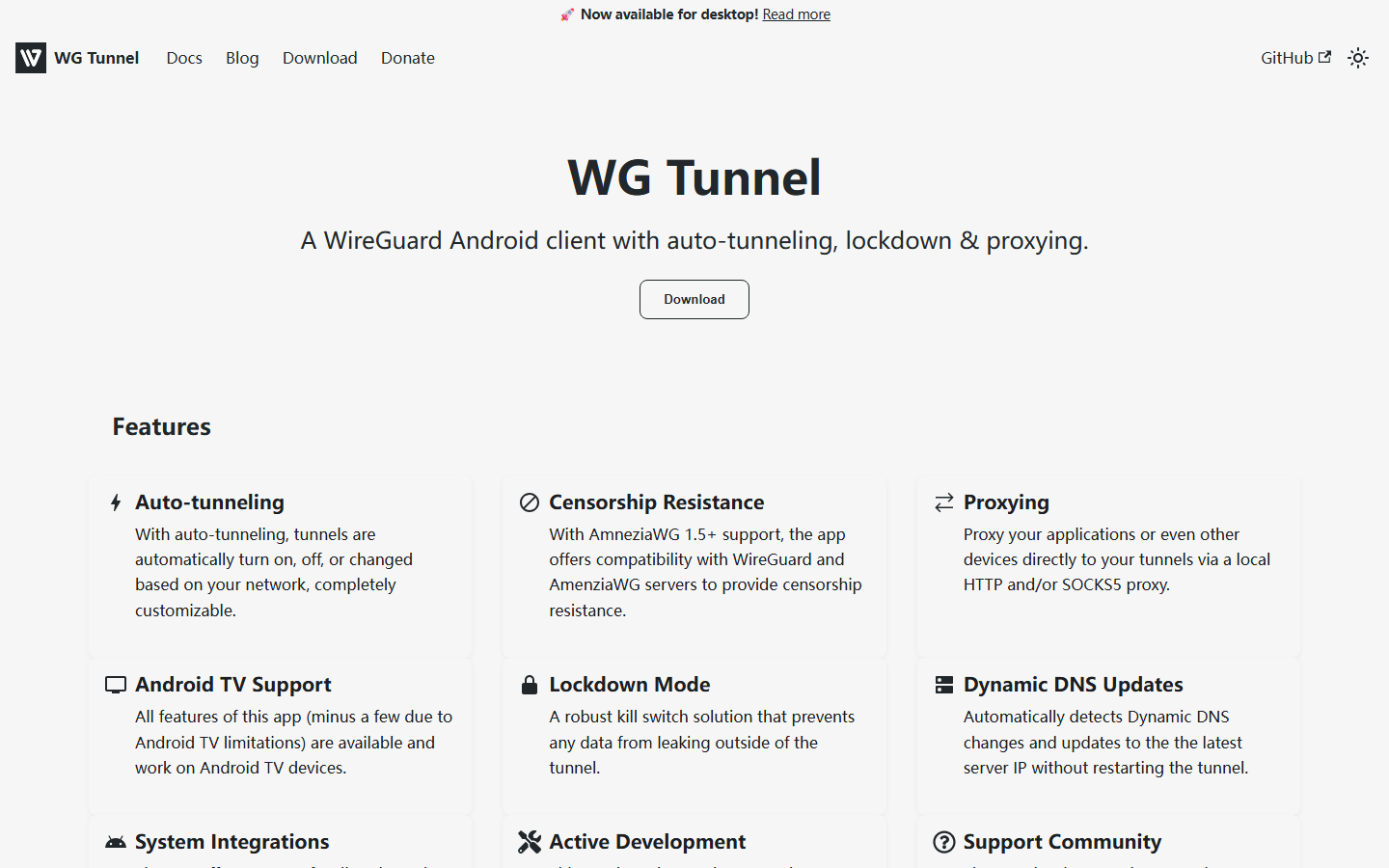
Auto-tunneling: per-SSID and network-based rules
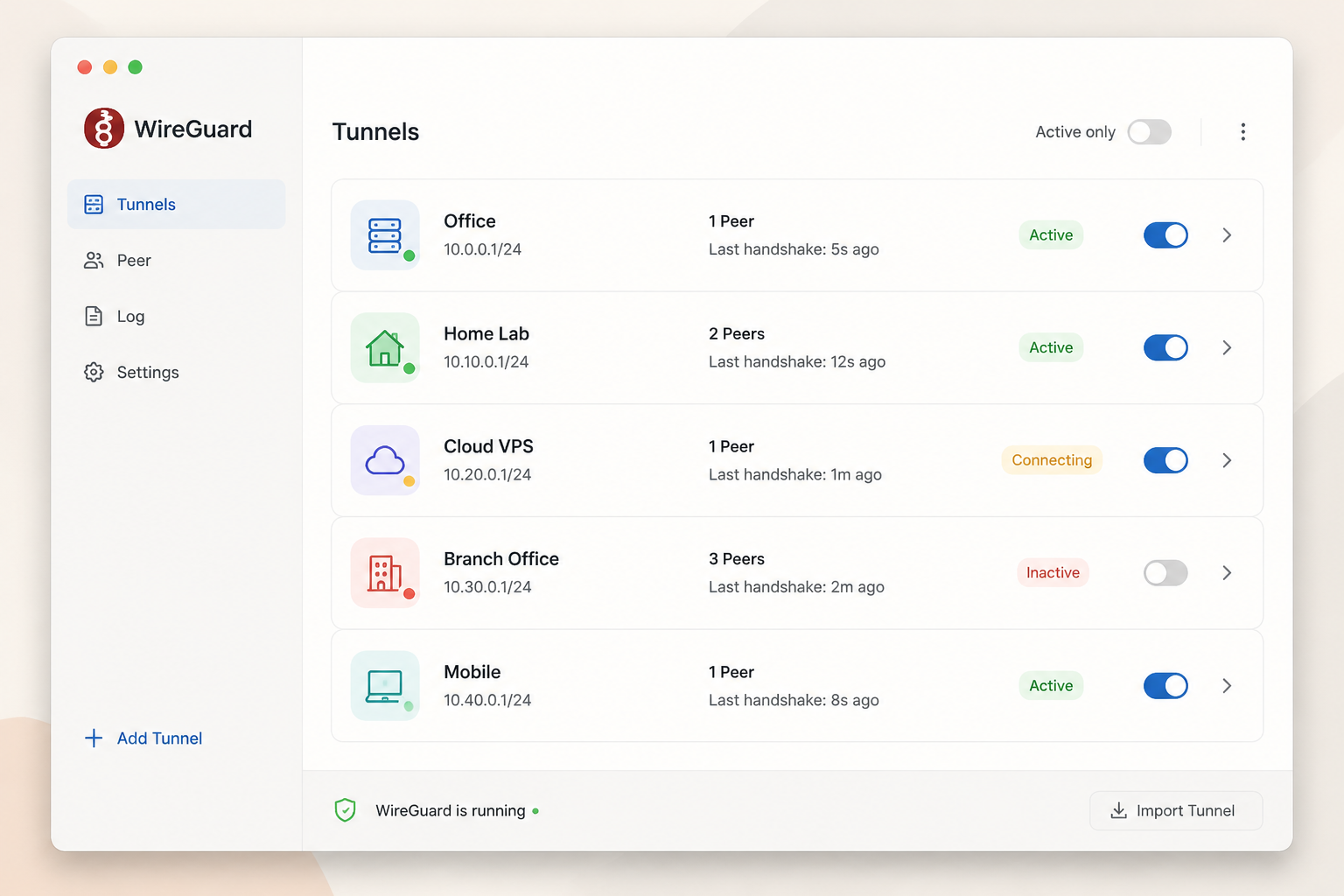
Auto-tunneling watches Android’s network state and decides whether the tunnel should be up based on rules you define. Mark your home Wi-Fi SSID as trusted and the tunnel stays off there. Connect to a coffee shop network you’ve never seen before and the tunnel activates within a second or two of association.
Rules can target specific SSIDs (trusted or untrusted lists), Ethernet, and mobile data independently. You can also pick which tunnel activates on which network – useful if you have one config for a home server and another for a commercial provider or a friend’s box.
In practice it’s the feature you’ll forget exists, which is the highest compliment for automation.
AmneziaWG support and censorship resistance
AmneziaWG is a WireGuard fork that pads and obfuscates the handshake so deep packet inspection can’t fingerprint it as WireGuard. Standard WireGuard handshakes are trivial to detect, which is why national firewalls in Russia, Iran, and China block the protocol outright.
WG Tunnel is one of a tiny number of Android clients that speaks AmneziaWG natively – you import an .awg config the same way you’d import a .conf file. You still need a compatible server endpoint, so this only helps if your VPN provider or self-hosted setup runs AmneziaWG on the other side. For users outside restricted regions it’s irrelevant; for users inside, it’s the difference between a working tunnel and a dead one.
Kill switch and lockdown mode
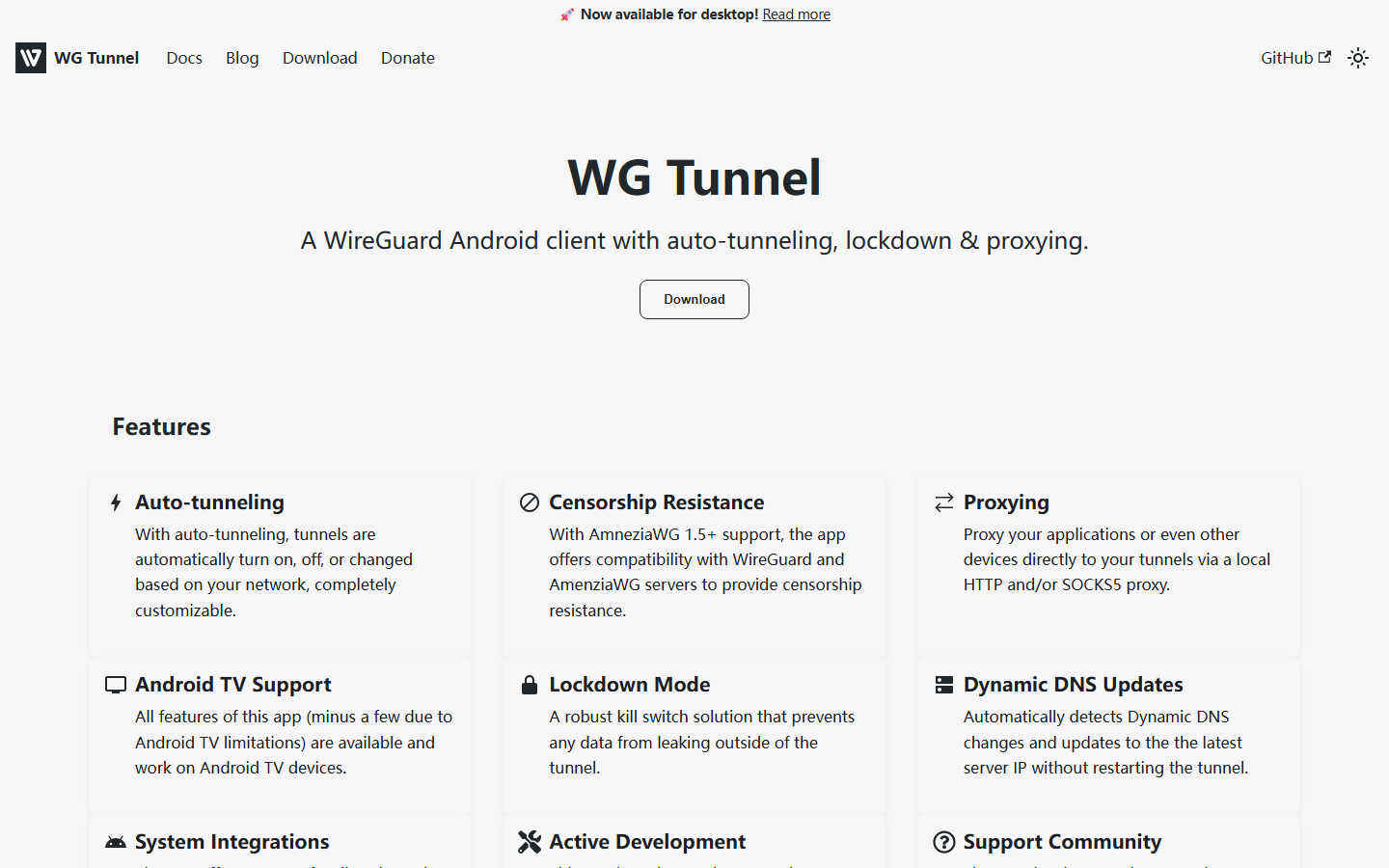
A standard kill switch blocks app-level traffic when the VPN drops. Lockdown mode goes further – it hooks Android’s Always-on VPN lockdown API and blocks all non-tunnel traffic at the OS level. Nothing leaks, including system processes and background sync.
The trade-off: if your endpoint is unreachable – server down, DNS broken, you’re on a captive portal – the device has no internet at all until you disable lockdown or reach the tunnel. That’s the design, not a bug. Know what you’re turning on.
SOCKS5 and HTTP proxy
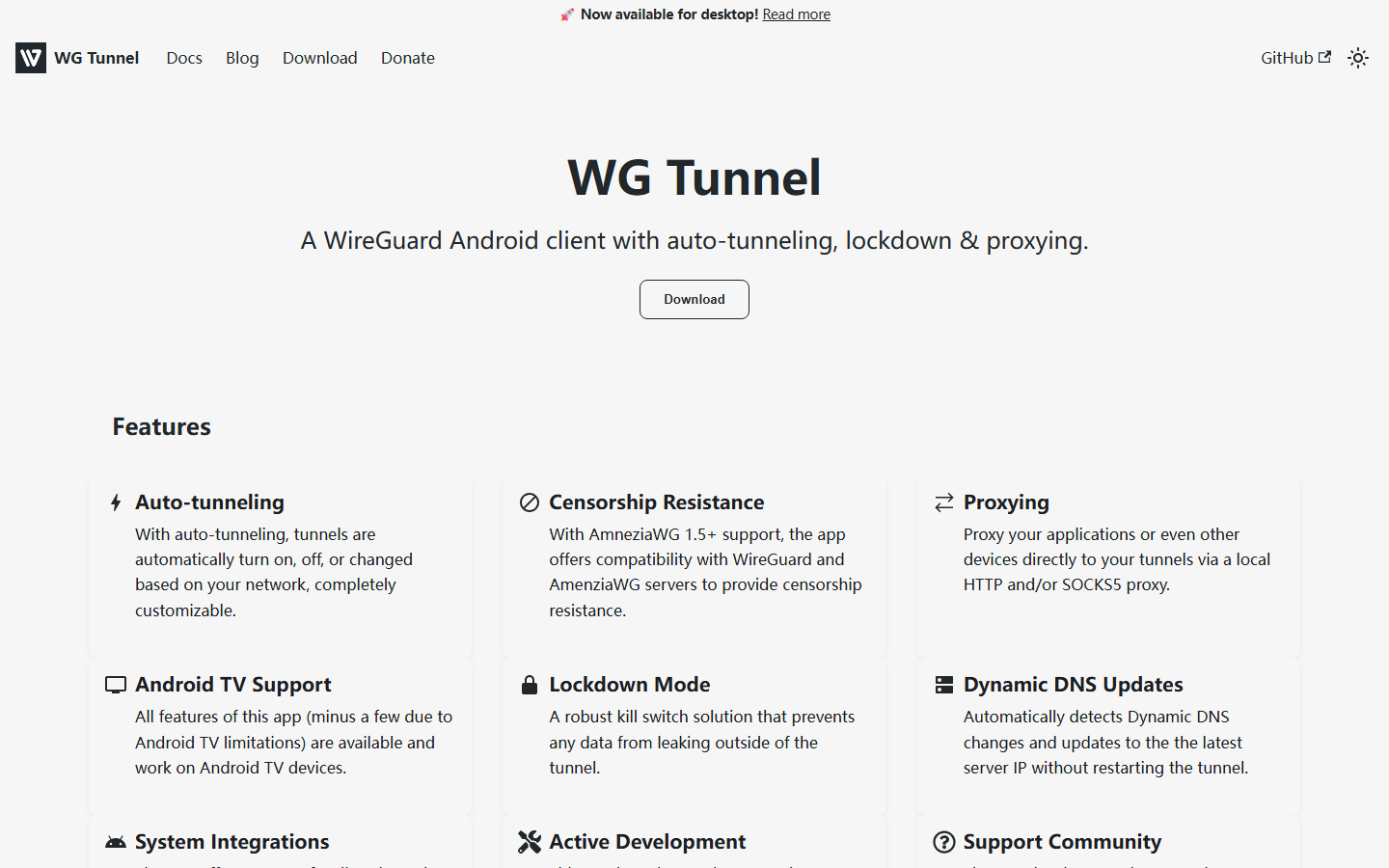
WG Tunnel can expose a local SOCKS5 or HTTP proxy that tunnels traffic out through your active WireGuard connection. Point a desktop browser at your-phone-ip:1080 and you’re browsing through your phone’s tunnel. Or configure a single app that supports proxy settings to use the tunnel without routing the whole device.
The official WireGuard Android app has nothing equivalent. For mixed setups – one device tunneled, others on the local network – this alone justifies the switch.
Dynamic DNS auto-update for self-hosters
If you run WireGuard on a home server behind a residential ISP, your public IP changes whenever the modem reboots or the lease expires. WG Tunnel periodically re-resolves the endpoint hostname and updates the tunnel target without you touching anything. Pair it with a free DDNS provider like DuckDNS and the most common home-lab failure mode disappears. The official client resolves the hostname once at connect time and forgets.
Tasker integration, quick tiles, and system shortcuts
WG Tunnel ships Tasker-compatible broadcast intents, so you can trigger tunnel connect or disconnect from any automation – geofences, calendar events, app launches, NFC tags. Quick-settings tiles let you toggle a specific tunnel from the notification shade in one tap, and dynamic shortcuts surface your tunnels in the launcher long-press menu. Restore-on-restart brings your active tunnel back automatically after a reboot, so a phone restart at 3 a.m. doesn’t leave you exposed in the morning.
Platform coverage: Android TV and desktop
WG Tunnel is one of the very few WireGuard clients that bothers with the living room, and it now reaches beyond phones entirely.
Android TV
The app ships with a dedicated Android TV layout that handles D-pad navigation properly – no fighting with a phone UI scaled to a 55-inch screen. You can import configs via QR code from your phone or sideload a .conf file, then toggle tunnels with the remote.
The catch: most of the auto-tunneling logic loses its point on a TV. There’s no cellular fallback, SSID switching is rare (your TV doesn’t roam), and you obviously can’t use the quick-settings tile. Treat it as a clean manual client, not a smart one.
Desktop
The project recently announced a desktop build, with Windows as the first supported platform. It’s early. Feature parity with the Android app isn’t there yet, and you should expect rough edges. If you want the current status, supported architectures, or a download, check the WG Tunnel GitHub repo before committing.
Pricing and plans
WG Tunnel is fully free. Not freemium, not free-with-ads, not a 7-day trial – free as in GPL-3.0, with every feature unlocked from first launch.
| Plan | Price | Features | Limits | License | Distribution |
|---|---|---|---|---|---|
| Free (only tier) | $0 | Auto-tunneling, AmneziaWG, kill switch, SOCKS5/HTTP proxy, dynamic DNS, Tasker integration, Android TV, desktop builds | None – no data cap, no ads, no telemetry, no account | GPL-3.0 | Google Play, F-Droid, GitHub Releases |
There is no paid plan and no roadmap for one. The developer accepts community contributions and donations through the project’s GitHub, but funding is optional and unrelated to feature access.
Worth restating: WG Tunnel is a client, not a VPN service. Commercial apps like NordVPN or Mullvad charge $5-12/month because they run server infrastructure. With WG Tunnel, you bring your own WireGuard endpoint – the app itself costs nothing, forever.
How to set up WG Tunnel on Android
Setup takes about five minutes if you already have a WireGuard server running. If you don’t, stop here – WG Tunnel is a client, not a server. Spin up something with Nyr’s installer on a VPS first, then come back.
Step 1: Install WG Tunnel and import your config
Grab WG Tunnel from Google Play or F-Droid. F-Droid is the better choice if you want reproducible builds. Open the app, tap the plus icon, and import your .conf file by scanning a QR code from your server, picking the file from storage, or pasting the contents manually. You need a working server-side config already – WG Tunnel does not generate peer keys for you.
Step 2: Configure auto-tunneling rules
Open Settings, then Auto-tunneling. Add your home Wi-Fi SSID to the trusted networks list – the tunnel stays off there. Toggle on “Tunnel on mobile data” and “Tunnel on untrusted Wi-Fi.” That’s the whole logic: trusted network means tunnel off, anything else means tunnel on. You can flag multiple SSIDs as trusted (home, office, parents’ house), and Android’s location permission is required for SSID detection – that’s an OS limitation, not a WG Tunnel quirk.
Step 3: Enable lockdown mode (optional but recommended)
Open the tunnel’s settings and flip on Lockdown mode. Then go to Android Settings – Network – VPN – WG Tunnel, and enable “Always-on VPN” plus “Block connections without VPN.” Now if your server goes down, your phone has no internet. Test this on Wi-Fi before you trust it on cellular – a misconfigured server plus lockdown plus a dead battery on your VPS equals a very quiet phone.
Step 4: Set up the SOCKS5 proxy (optional)
In tunnel settings, scroll to Proxy and enable SOCKS5 or HTTP. Note the local port (usually 1080 for SOCKS5). Point Firefox, a torrent client, or another app on the same device at 127.0.0.1:1080 and that traffic routes through the tunnel while everything else uses your normal connection. Useful for split routing without messing with AllowedIPs.
Open source transparency and community support
WG Tunnel is licensed under GPL-3.0, with all source code published on GitHub under the zaneschepke/wgtunnel repository. At time of writing, the project has over 2,000 stars and a steady commit cadence – small fixes and feature work land most weeks, and tagged releases ship roughly every few weeks. That matters because you can audit exactly what the binary on your phone is doing with your tunnel keys. With a closed-source commercial VPN client, you are taking the vendor’s word for it.
Support runs through two community channels: a Telegram group and a Matrix room, both linked from the GitHub README. The developer, Zane Schepke, is genuinely active in both – bug reports often get a response within a day, and feature discussions happen in the open. There is no SLA and no paid support tier; if you need guaranteed enterprise response times, this is not the app for you.
For everyone else, the responsiveness is better than most commercial VPN support desks you have probably dealt with.
Pros and cons
Here’s the honest scorecard after weeks of daily use.
Pros
- Auto-tunneling actually works. Per-SSID rules and trusted network detection mean you stop thinking about whether the tunnel is on – it just is, when it should be.
- AmneziaWG support out of the box. If you’re in a region that fingerprints and blocks vanilla WireGuard handshakes, this alone justifies the switch.
- SOCKS5 and HTTP proxy. Route a single app or a whole other device through your phone’s tunnel. Few clients on any platform offer this.
- Lockdown mode is OS-level. It uses Android’s
alwaysOnandlockdownVPN flags, not an in-app firewall hack, so it survives app crashes and reboots. - Fully auditable. MIT-licensed, active GitHub, no telemetry to argue about.
Cons
- You bring your own server. There’s no one-tap signup like a commercial VPN. If you can’t stand up a WireGuard endpoint, this isn’t for you.
- More knobs, more rope. Misconfigured split tunneling or DNS will silently leak traffic.
- Desktop version is early. Windows works; expect rough edges and missing parity with the Android build.
- No key generation wizard. You’ll import a
.conffile or paste config text – no guided setup for first-timers.
Alternatives to WG Tunnel
WG Tunnel is excellent, but it’s not for everyone. If you don’t run a WireGuard server, or you just want something simpler, one of these is probably a better fit. For a wider look at the category, see our best VPN tools of 2026 roundup.
Official WireGuard Android app
The reference client from the WireGuard project itself. It does one thing: bring up and tear down WireGuard tunnels. No auto-tunneling, no SOCKS5 proxy, no AmneziaWG, no per-SSID rules. If you only flip your VPN on manually a couple times a day and trust the upstream maintainers above all else, this is the safer, more minimal pick. Most WG Tunnel power-user features will feel unnecessary to you.
Mullvad VPN
Mullvad costs €5/month flat and runs WireGuard across hundreds of servers. You don’t host anything, you don’t manage keys, and you get a no-logs policy backed by repeated third-party audits. The tradeoff: you’re trusting Mullvad’s infrastructure rather than your own, and you lose the granular control WG Tunnel gives you. Best for users who want WireGuard speed without the self-hosting homework.
Tailscale
Tailscale builds a mesh network on top of WireGuard and handles key exchange, NAT traversal, and routing for you. You install the client, log in, and your devices can reach each other. The free tier covers up to 100 devices across 3 users. It’s not really a privacy VPN – it’s a remote-access tool, but for accessing a home server or LAN from your phone, it’s dramatically easier than rolling your own WireGuard config.
Verdict: who should use WG Tunnel?
Use WG Tunnel if you already run a WireGuard server (self-hosted, Algo, PiVPN, or a VPS) and want a client that actually does something with it. The auto-tunneling logic alone – per-SSID rules, trusted network detection, kill switch on disconnect – justifies the switch. It’s also the right pick if you bounce between coffee shop Wi-Fi and home networks daily, need AmneziaWG to get through DPI in Russia, Iran, or China, or want to route a second device through your phone’s tunnel via the built-in SOCKS5 proxy.
Stick with the official WireGuard app if you want one tunnel, one toggle, and nothing else to think about. It’s lighter, simpler, and works.
Use a commercial VPN (Mullvad, IVPN, ProtonVPN) if you don’t have a server and don’t want one. WG Tunnel is a client, not a service – it cannot manufacture endpoints for you.
Final rating: 8.7/10
The feature set is genuinely best-in-class for an open-source Android WireGuard client, and nothing else on F-Droid or Google Play comes close on auto-tunneling depth or AmneziaWG support. The only ceiling is that you must bring your own infrastructure, which is exactly the audience the developer is building for.
Frequently asked questions
Does WG Tunnel work without a WireGuard server?
No – WG Tunnel is a client, not a VPN service. You need an existing WireGuard config file (.conf) from a provider like Mullvad, IVPN, or ProtonVPN, or from a self-hosted server running WireGuard or AmneziaWG. The app imports configs via file, QR code, or clipboard, but it won’t generate server-side credentials for you.
What is the difference between WG Tunnel and the official WireGuard app?
The official WireGuard for Android (v1.0.20231018) is minimal by design – it imports configs and toggles tunnels, full stop. WG Tunnel adds per-app split tunneling, auto-connect rules based on Wi-Fi SSID or ethernet, kill switch behavior, AmneziaWG support, and a cleaner Material You interface. If you only need basic tunnel toggling, stick with the official client; if you want automation, WG Tunnel is the upgrade.
How does auto-tunneling work in WG Tunnel?
Auto-tunneling triggers the VPN based on network conditions you define: connect on mobile data, connect on untrusted Wi-Fi, or skip trusted SSIDs you whitelist. You can also set it to activate on ethernet or when specific apps launch. The feature runs as a foreground service, which means a persistent notification, but it survives reboots if you grant the permission.
What is AmneziaWG and do I need it?
AmneziaWG is a WireGuard fork that obfuscates packet headers to defeat deep packet inspection – useful in China, Iran, Russia, and Turkmenistan where vanilla WireGuard gets blocked. WG Tunnel supports AmneziaWG configs natively as of version 3.5. If your ISP doesn’t censor WireGuard, you don’t need it and standard configs will perform better.
Is WG Tunnel safe to use – can I trust an open-source VPN client?
The source code is public on GitHub under the MIT license, and the app is available on F-Droid, which builds reproducibly from source. Maintainer Zane Schepke has shipped consistent updates since 2023, and the codebase has no known telemetry or analytics. Audit it yourself or trust the F-Droid build process – both are reasonable options.
Does WG Tunnel support Android TV?
Yes, WG Tunnel ships a dedicated Android TV build with D-pad navigation and a leanback-friendly layout. You can sideload it via APK or install through F-Droid on TV boxes running Android 8.0 or later.
Is there a desktop version of WG Tunnel?
No – WG Tunnel is Android-only. For Windows, macOS, or Linux, use the official WireGuard clients from wireguard.com or a GUI like TunSafe.